The JPG is the source now
A JPG does not contain a hidden text box. It stores the headline, background, shadows, and every other detail as one grid of pixels. You cannot click the date and type over it as you would in Photoshop.
Start by finding the largest clean copy of the exported image. Keep an untouched duplicate. The task is then narrow: remove the old letter shapes, rebuild the small area behind them, and place the corrected words in the same visual role.
Worth noting: A solid rectangle is only a convincing fix on a truly flat background. On paper texture, gradients, fabric, or photography, the patch usually gives itself away.
Example: move a workshop from July to August
The poster below is an illustrative example of a contained correction. Its visual concept stays the same while the date changes, so the review can focus on the selected line and the details immediately around it.
The original date is JULY 12 and the replacement for this example is AUGUST 16. The new line is wider, so it needs enough room for two extra letters without crowding the surrounding design.
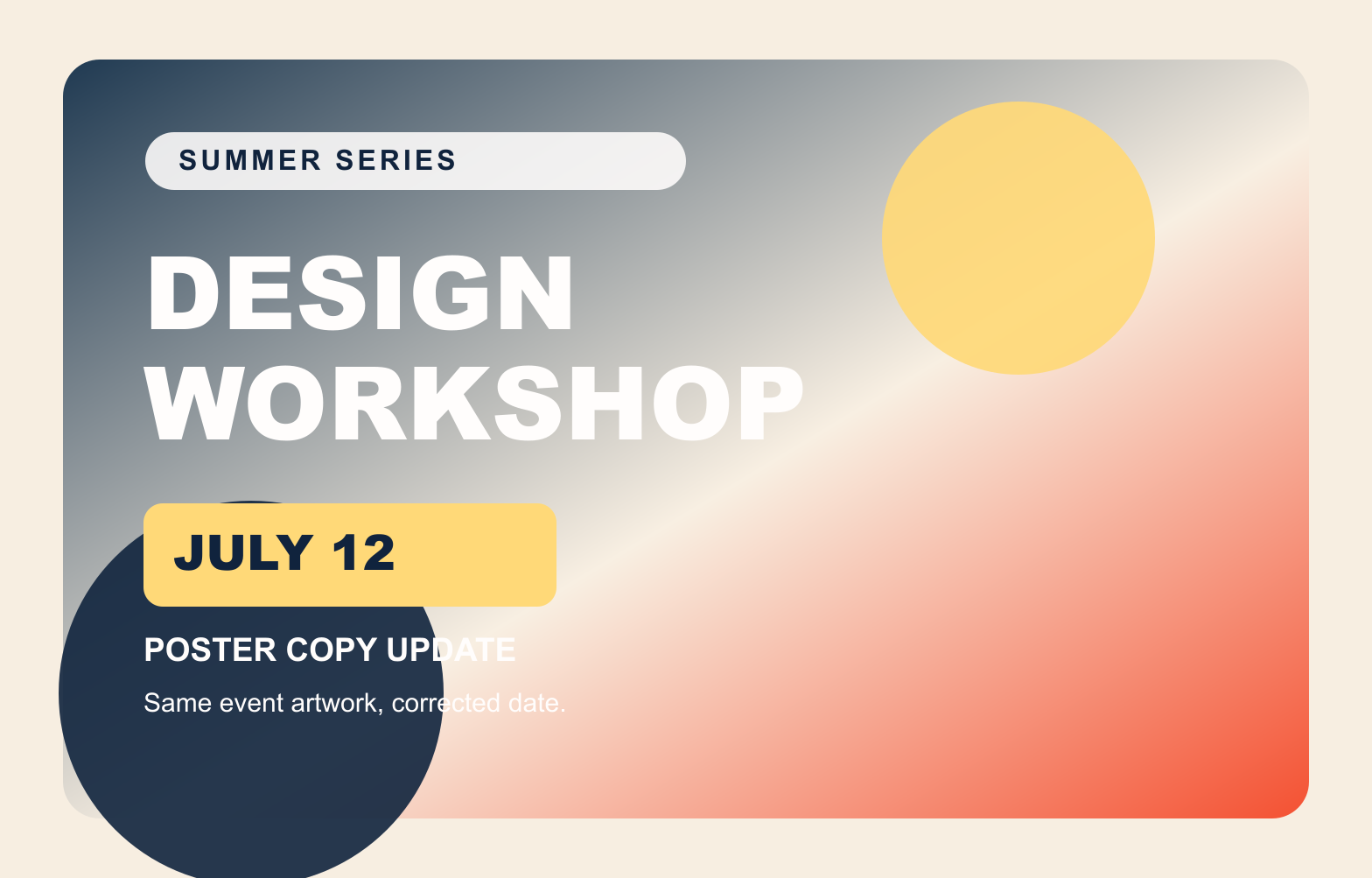
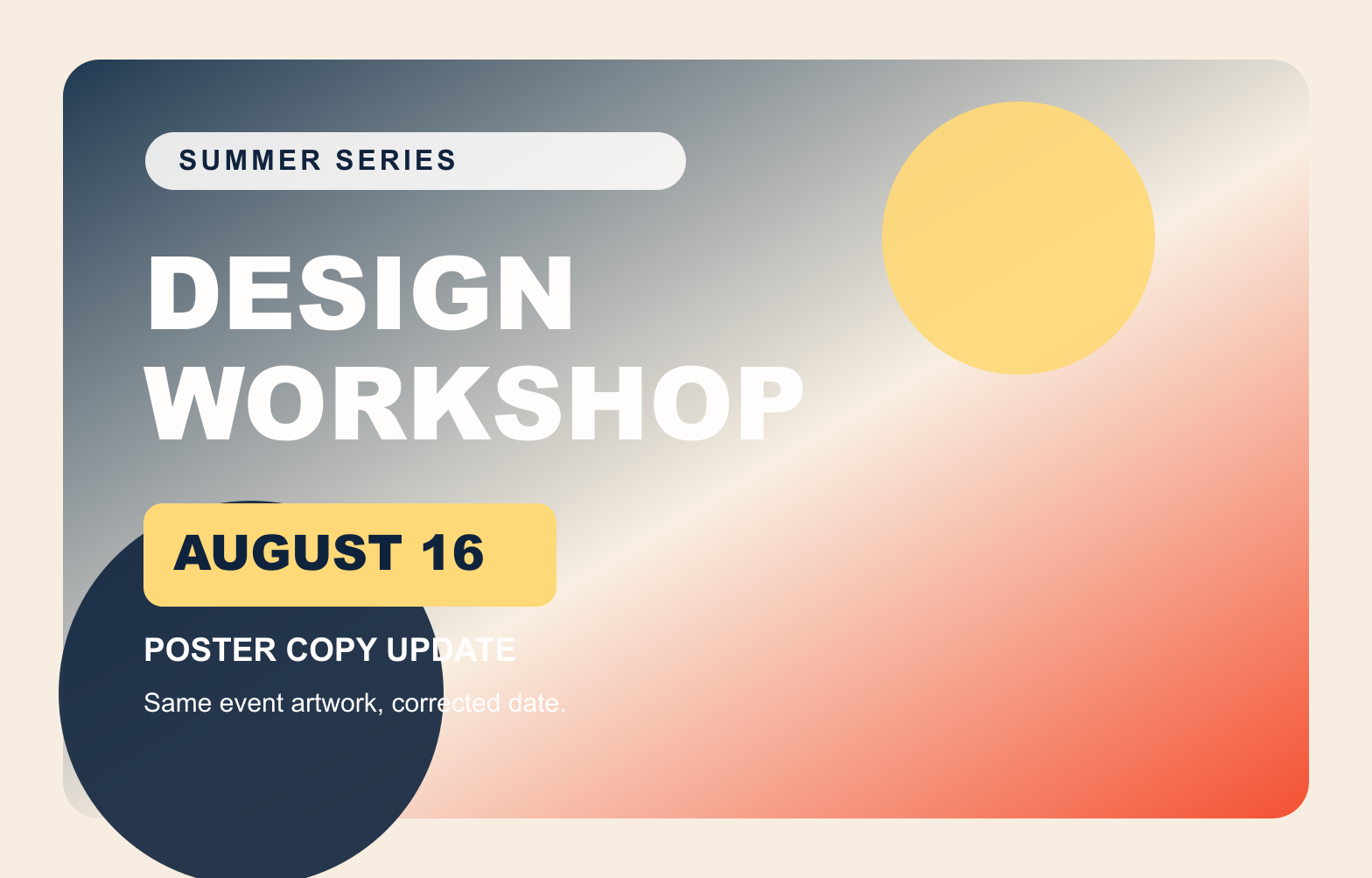
The pair shows the intended scope: replace one date, then inspect the illustration, spacing, color, and composition for unintended changes.
- Original
- JULY 12
- Replacement
- AUGUST 16
The second line is wider. Keep it on one line only if the available space and letter size still match the poster.
Make the new line fit before you generate
Decide the capitalization and line break first. If the replacement is much longer, edit the copy rather than asking the image to absorb an awkward sentence. A shorter approved phrase usually looks more intentional than tiny lettering squeezed into the old space.
Select the full old line, including its outline or shadow. A selection that cuts through the final letter can leave a visible fragment. A selection that covers half the poster gives the cleanup too much freedom.
- Preserve the original number of lines when the layout is tight.
- Include the complete lettering effect in the selected area.
- Compare the result at full size and at the size used on the page.
When to return to the original design tool
Use a dedicated text-replacement tool when the image is finished and one contained line is wrong. Return to Photoshop, Canva, Figma, or the source application when the layout itself is changing, several elements need to move, or you need a layered source file for future versions.
For the poster above, the practical final pass is short: read AUGUST 16 character by character, check that no part of JULY 12 remains, and look at the illustration around the date. If those checks pass, the corrected export is ready to replace the old asset.
FAQ
Can I edit text in an image without the Photoshop file?
Yes, when the finished image is the only usable source and the change is limited to one contained text area. The result remains a flattened image rather than a restored PSD with editable layers.
When should I rebuild the image instead?
Use the original design tool when several elements must move, the layout is changing, exact brand typography is required, or the team needs reusable layers for future versions.
How much of the old text should I select?
Select the complete original wording, including visible shadows or outlines. A partial selection can leave old strokes behind, while an oversized selection may rebuild more of the image than necessary.
Choose the smallest tool that fits the edit
When one line is wrong and the source file is gone, replace that line first. Rebuild the design only when the design itself needs to change.
Correct text in your image