Button Labels
Change CTA buttons, navigation buttons, and action labels in screenshots.
Screenshot text editing
Update text already embedded in screenshots without recreating the entire interface. Upload a JPG, PNG, or WebP screenshot, select the text you want to change, enter the replacement, compare the generated result, and download a flattened PNG.
Choose a clear screenshot containing the button, label, message, or interface text you want to update.
Real before and after
Compare the original homepage screenshot with the flattened result produced by the current Image Text Editor workflow.
Additional current editor result
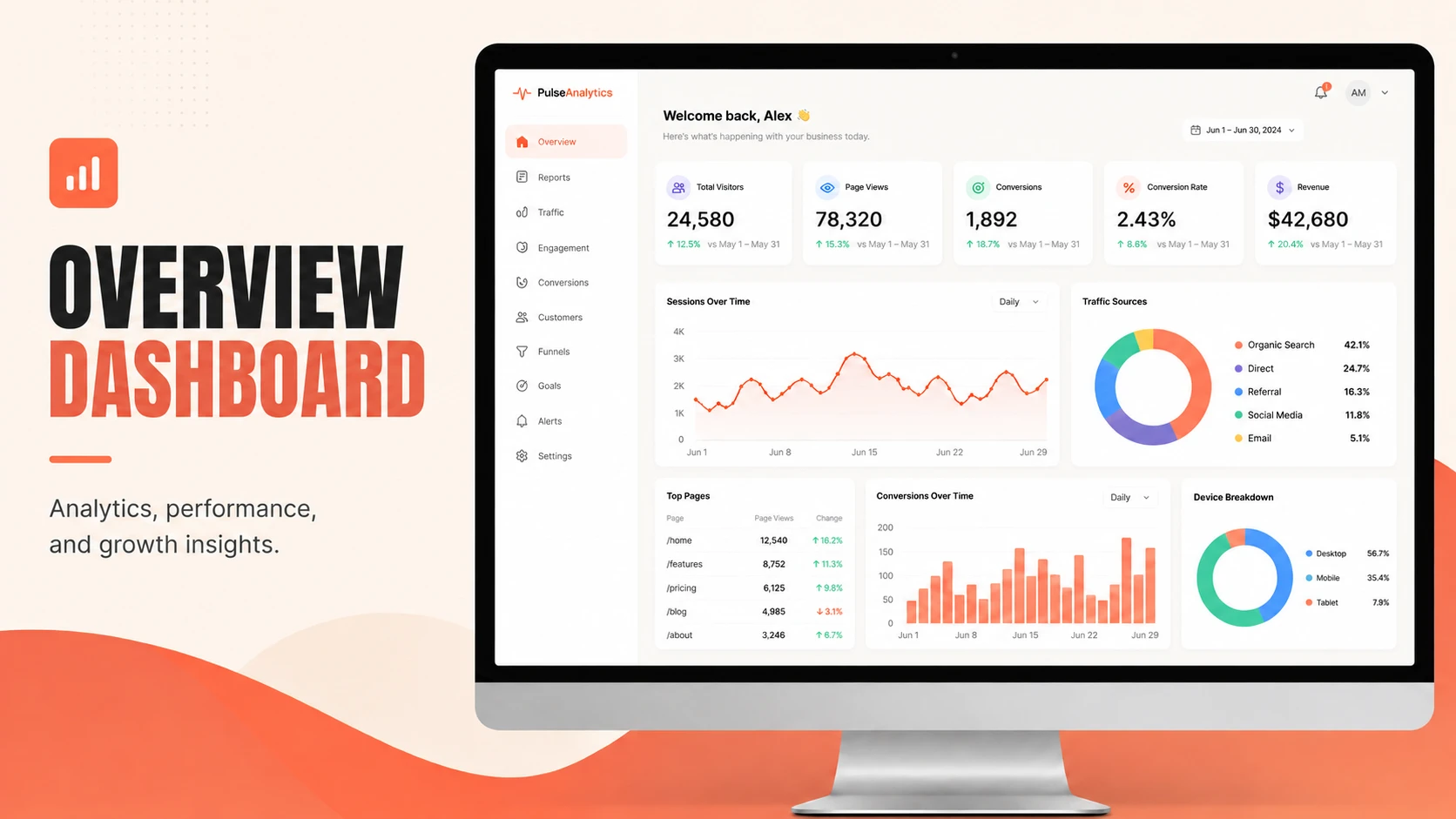

This example was generated with the current Image Text Editor workflow using the original uploaded screenshot. The result is a flattened image, not an editable UI layer. Results vary with image quality, text style, background complexity, and model output.
Common interface updates
Change CTA buttons, navigation buttons, and action labels in screenshots.
Update dropdown labels, sidebar items, and navigation text.
Replace headings, metrics labels, and status messages in product dashboards.
Edit onboarding screens, settings pages, and mobile app interface text.
Update screenshots used in documentation, guides, and support materials.
Change visible website copy in screenshots without rebuilding the original page.
Choose the right editing surface
When you still have the original Figma, Canva, or design file, editing the source usually provides better control. Screenshot editing is useful when the screenshot is the only available version.
| Screenshot Editing | Source File Editing |
|---|---|
| Works with finished images | Requires original files |
| No Figma or PSD needed | Needs editable layers |
| Fast text replacement | Full design control |
| Generates flattened output | Keeps editable objects |
Four-step screenshot workflow
Upload a clear JPG, PNG, or WebP screenshot containing the text you want to change.
Choose the detected button label, menu item, message, or other text block.
Type the new wording that should appear in the screenshot.
Compare the result, check UI alignment and nearby details, then download the flattened PNG.
Source and review quality
Need the step-by-step version? Read the screenshot text editing guide before changing a published UI image.
Know before you edit
Screenshot text editing works best when interface elements are clear and readable.
Very small text, compressed screenshots, blurred UI elements, complex gradients, transparent overlays, and dense interfaces may require additional review.
The tool generates a new flattened image and does not recreate the original editable application interface.
Screenshot editing questions
Yes. Upload the screenshot, select one detected text area, enter the replacement wording, and generate a new flattened image.
Yes. The workflow can be used for app screens, website screenshots, dashboard images, and interface mockups when the text is clearly visible.
Yes. Select the visible button label and enter the replacement text. Always review nearby icons, spacing, and interface details before publishing.
No. The tool works with finished screenshot images. However, editing the original design file provides more control when it is available.
No. The output is a flattened image rather than an editable interface or text layer.
No. The generated screenshot is a flattened result. Use the original design file when manual typography or layout control is required.
The editor accepts JPG, PNG, and WebP screenshots up to 12 MB.
Original uploads are stored privately for up to 24 hours. Completed flattened results and related private diagnostics are kept for up to 7 days unless you delete them sooner. Your uploaded image and relevant text instructions are sent to the providers needed to perform the edit. Read the Privacy Policy.
Eligible new accounts receive 1 free credit, available for one Standard 1K result, plus capacity for 3 image scans. Paid one-time credit packs start at $4.99 for 12 credits.
Working with a PNG screenshot? Edit text in a PNG image with the format-specific workflow.
Start with the current screenshot
Upload a finished screenshot, select one text block, enter the replacement, and review the flattened result before downloading.
Upload a Screenshot to Edit