Finished Image
Contains rendered pixels, not the original font file.
Visual font-style matching
Replace words already embedded in a finished image while using the original lettering as a visual reference. Upload a JPG, PNG, or WebP, select one text block, enter the replacement, compare the generated result, and download a flattened PNG.
The editor aims for a visually consistent font style. It does not identify, recover, or apply the original font file.
Choose a clear image where the complete original lettering, color, outline, shadow, and surrounding design are visible.
Real before and after
Compare the original retro travel poster with the flattened result created by the current Image Text Editor workflow.
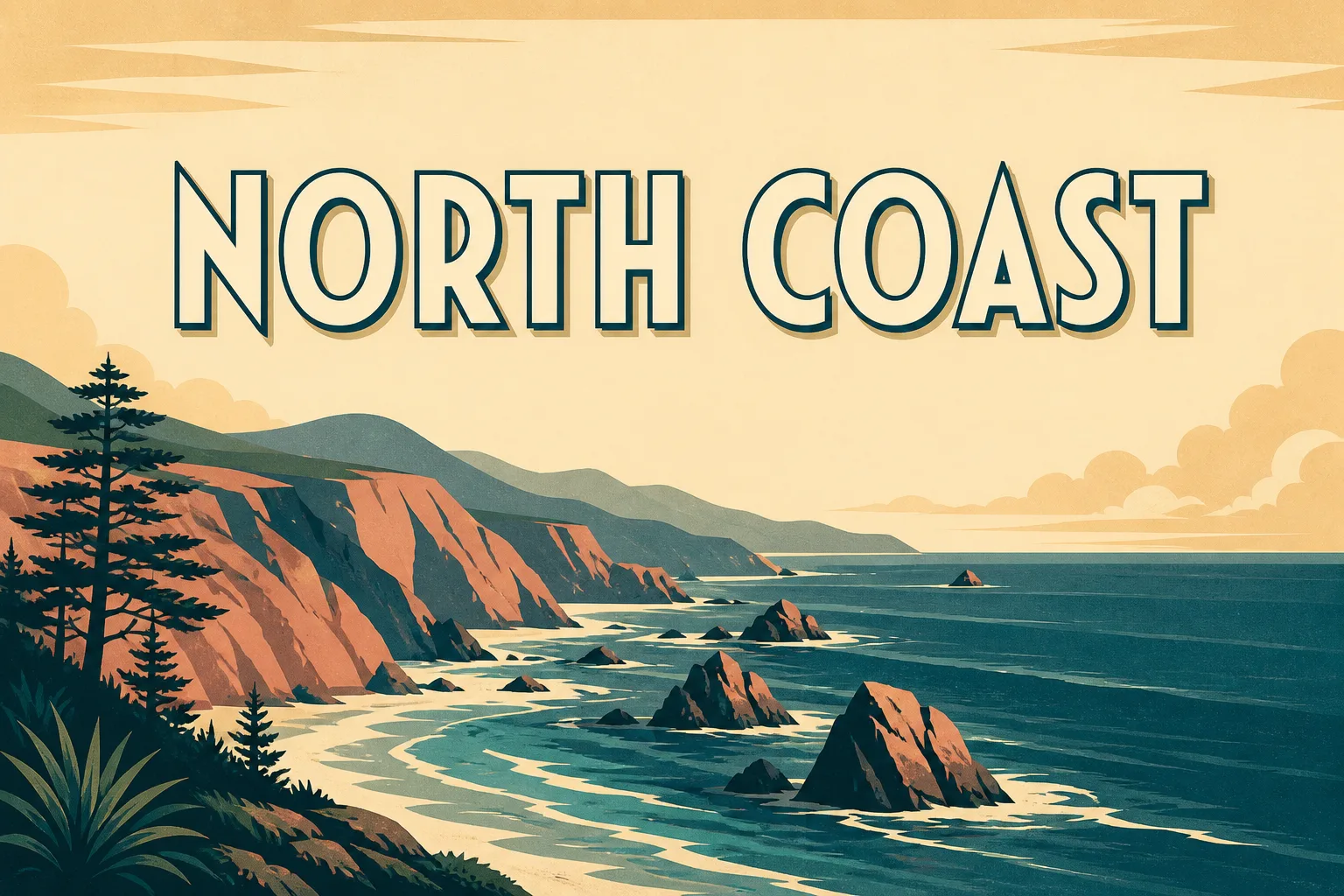
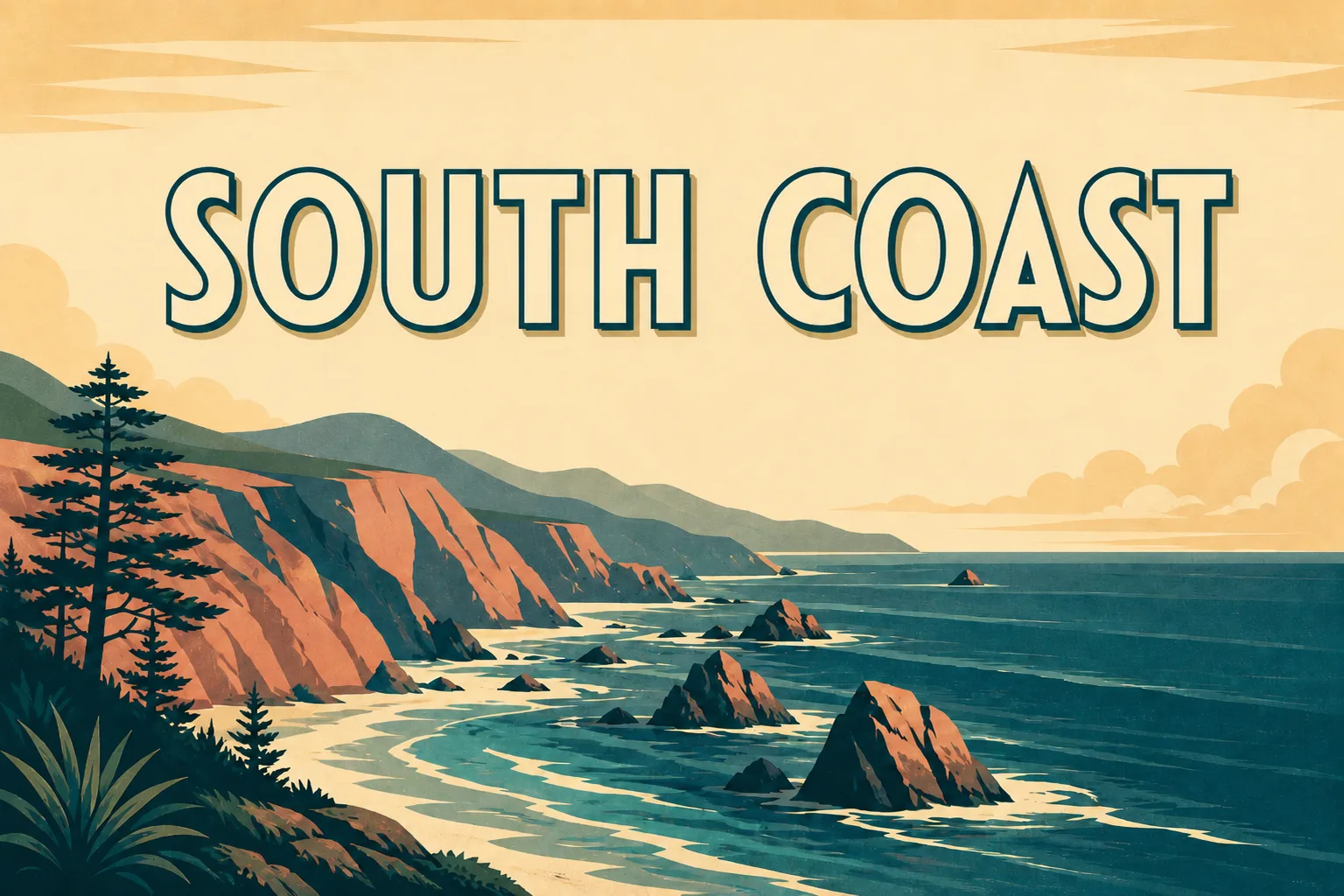
This example was generated with the current Image Text Editor workflow using the original uploaded poster. The image model used visible letter shapes, weight, width, color, outline, and surrounding design as visual references. The result is a flattened image, not an editable text layer, and it does not recover or apply the original font file. Results vary with image quality, text style, background complexity, and model output.
A visual target, not font recovery
A finished JPG, PNG, or WebP contains pixels rather than the original font file. The editor cannot retrieve a font name or reopen lettering as a live text layer. In this workflow, “same font” means using visible typography as a reference and aiming for a replacement that feels consistent with the original image.
Contains rendered pixels, not the original font file.
The model uses visible lettering and nearby design as context.
Returns a new flattened image rather than an editable text object.
Typography as visible reference
Visible curves, corners, proportions, and overall character style provide the main reference for the replacement.
Bold, light, condensed, wide, and display lettering occupy different amounts of visual space.
Uppercase, lowercase, and title case create different shapes and spacing even when wording has a similar length.
Visible fills, outlines, shadows, glows, gradients, and texture can influence how generated wording appears.
Letter spacing, line breaks, baseline, and alignment affect whether new text belongs in the original design.
Tilted, photographed, or perspective-based lettering can be less predictable than flat, front-facing text.
Four-step visual matching workflow
Upload the highest-quality JPG, PNG, or WebP available. Clear letter edges, shadows, outlines, and surrounding details give the image model a stronger visual reference.
Choose the full word, headline, label, or sentence. Include visible outlines and shadows inside the selected area when they are part of the typography.
Type the exact new wording. A replacement with similar length, capitalization, and line structure is usually easier to fit into the original visual area.
Generate the edited image, compare it with the original, check every character and typography detail, then download the flattened PNG.
Review the visible match
When visual consistency matters
Update one campaign headline while keeping the new version visually consistent with approved assets.
Replace a short product label, benefit, price, or promotional message. Use the product photo editor for ecommerce workflows.
Update a button label, dashboard heading, or interface message while preserving visual language. Use the screenshot editor.
Change a title, date, location, or short event message while retaining the exported design’s visual character.
Reuse a finished visual with new short copy while aiming for a consistent headline treatment.
Replace clear, front-facing wording on authorized labels, signs, and promotional displays.
Exact typography needs the source
Use the original Canva, Figma, Photoshop, Illustrator, or other design file when exact brand typography is required. The source design is better for the precise font family, licensed font file, manually controlled kerning, reusable layers, broad revisions, or guaranteed consistency.
| Image Text Editor | Original Design File |
|---|---|
| Works with a finished image | Requires the editable source |
| Uses visible lettering as a reference | Uses the actual installed font |
| Produces a flattened result | Keeps editable text layers |
| Suitable for focused replacements | Suitable for exact brand typography |
| Faster for one contained change | Better for broad design revisions |
Flattened output
The downloaded PNG does not contain the original font file, a separate text box, or controls for changing font, size, color, spacing, or position afterward. Review the visible match before downloading; return to the original editable design file when manual typography changes are required.
Know before you generate
A visual font-style match cannot be guaranteed. Results are generally more predictable when original text is sharp, front-facing, clearly separated from the background, and not extremely small.
Long replacements, distinctive custom lettering, handwriting, curved text, metallic effects, heavy perspective, complex gradients, compression artifacts, and dense labels can be less consistent.
The generated image may contain a misspelled character, different letter width, altered spacing, an imperfect shadow, traces of original wording, or changes to nearby details. Review the complete result before publishing.
Only upload and edit images you own or have permission to modify.
Font-style matching questions
The editor aims for a visually consistent font style, but it cannot guarantee the exact same font. A finished image contains rendered pixels rather than the original font file.
No. The workflow uses the visible lettering as a visual reference, but it does not identify, return, or download the original font name or font file.
No. You can work from a finished JPG, PNG, or WebP image. The generated result uses visible typography and surrounding design as references rather than applying an installed font file.
The image model uses visible color and effects as references, but exact preservation cannot be guaranteed. Review the fill, outline, shadow, glow, texture, and nearby background before publishing.
Longer wording may create different scale, spacing, line breaks, or alignment. Use concise approved copy and keep capitalization and length reasonably close when possible.
No. The generated result is a flattened image rather than an editable text layer. Use the original design file when manual typography control is required.
The current workflow focuses on one selected text block per generation. Complete and review separate text areas one at a time.
The editor accepts JPG, PNG, and WebP images up to 12 MB.
Eligible new accounts receive 1 free credit, available for one Standard 1K result, plus capacity for 3 image scans. Paid one-time credit packs start at $4.99 for 12 credits.
Original uploads are stored privately for up to 24 hours. Completed flattened results and related private diagnostics are kept for up to 7 days unless you delete them sooner. Your uploaded image and relevant text instructions are sent to the providers needed to perform the edit. Read the Privacy Policy.
Working with a JPEG source? Match the visible font style in a JPG image.
Working with a PNG source? Match the visible font style in a PNG image.
Start with visible lettering
Upload a finished image, select one text block, enter the new wording, and review the visual font-style match before downloading the flattened result.
Upload an Image