Flattened Pixels
The original wording is already part of the PNG image.
PNG image text editing
Change words already embedded in a finished PNG image without the original design file. Upload the PNG, select one detected text block, enter the replacement, compare the AI-generated result, and download a new flattened PNG.
A PNG can preserve sharp graphics and transparent areas, but it does not contain the original live text layer after export. This workflow edits the visible pixels and returns a new generated image.
Transparent areas may be flattened or changed during generation, so review the downloaded file before using it in a layered or overlay workflow.
Choose the clearest PNG available, containing the complete word, number, date, label, heading, or short text block you want to change.
Current editor result
Compare the original uploaded PNG infographic with the flattened result produced by the current Image Text Editor workflow.
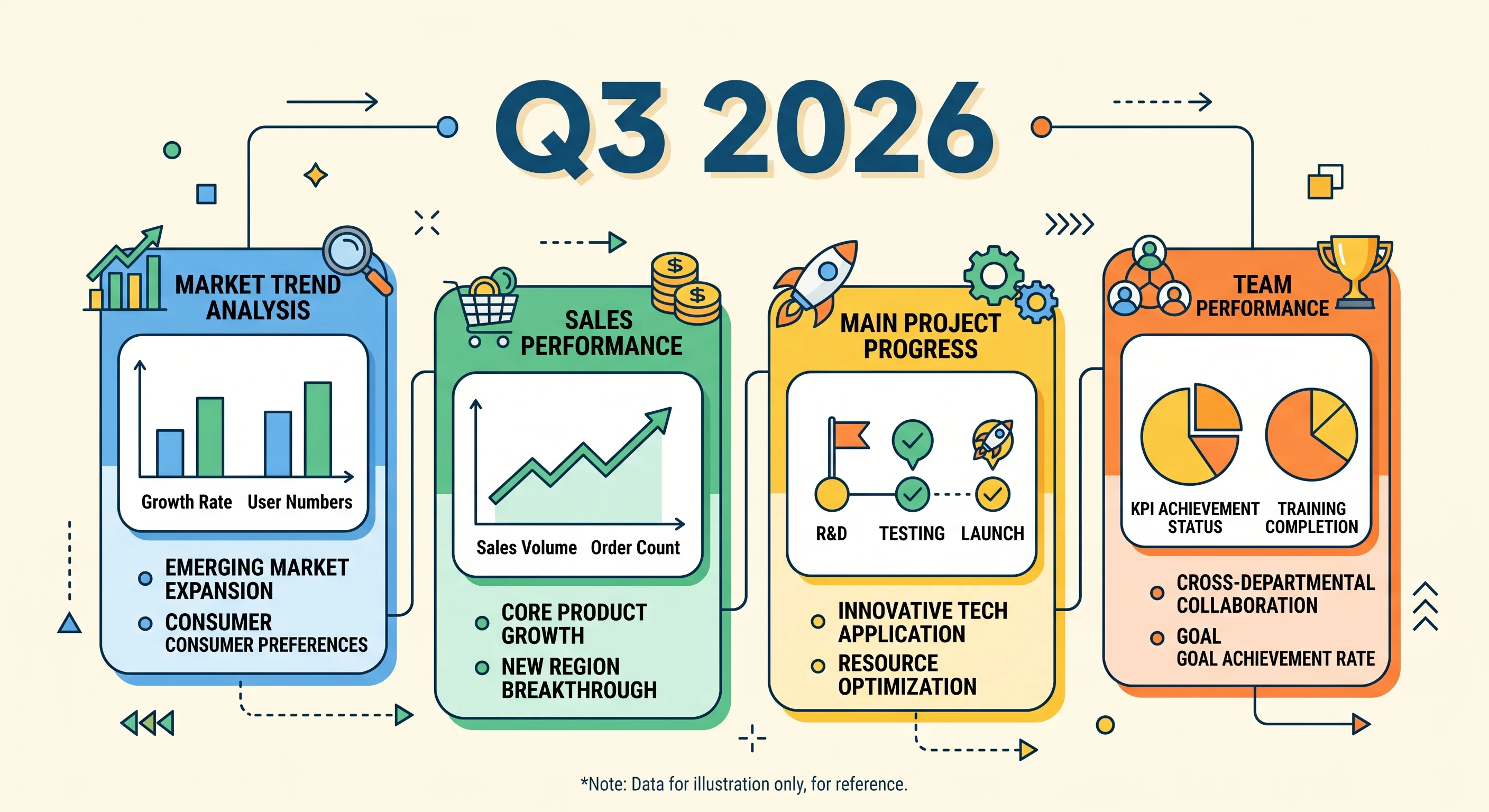
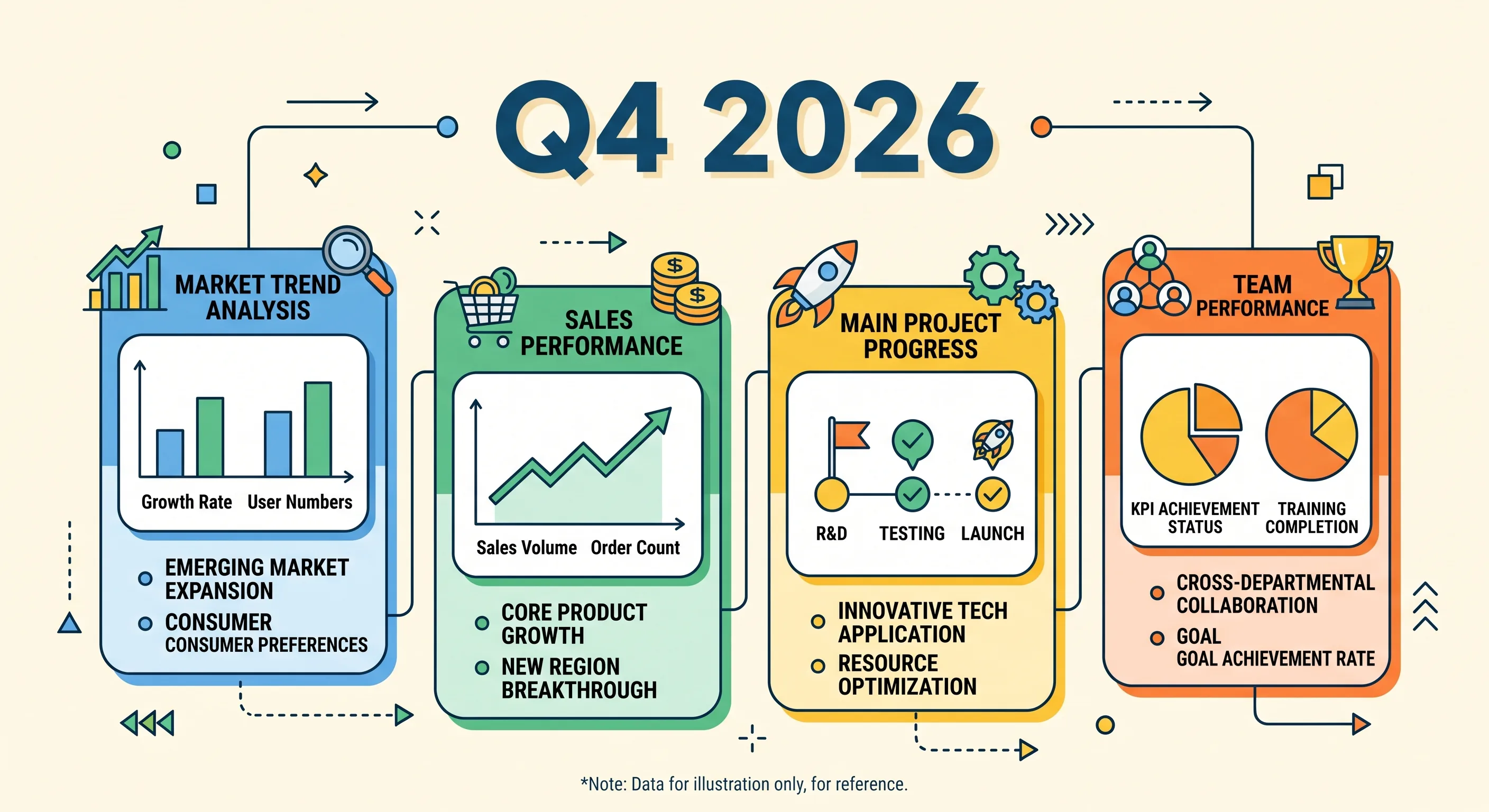
This example was generated with the current Image Text Editor workflow using the original uploaded opaque PNG infographic. The quarter label was changed from Q3 2026 to Q4 2026 while the surrounding icons, lines, colors, and layout remained the visual reference. Both source and output contain an Alpha channel with every pixel fully opaque, so this example does not demonstrate transparent-background preservation. The files shown here are compressed WebP preview derivatives for faster loading. Results vary with image quality, text style, background complexity, and model output.
Pixels, not live text
A finished PNG stores visible letters as image pixels. It does not retain the original font file, live text box, paragraph settings, or design layers from Canva, Figma, Photoshop, or another source application.
To change the wording, the old letter pixels must be regenerated, the selected background area must be rebuilt, and the replacement must be rendered into a new flattened image.
The original wording is already part of the PNG image.
The file does not contain the original editable text object.
The workflow returns a new PNG rather than reopening the source design.
Finished PNG use cases
Update one quarter, year, number, label, heading, or short data annotation in an exported infographic.
Replace a readable label, button name, heading, or state inside an authorized exported PNG asset. For complete interface captures, use the screenshot text editor.
Correct one title, number, chart label, or short statement in a PNG exported from a presentation.
Update one headline, date, offer, CTA, or short promotional line in a finished PNG creative.
Correct one step label, category heading, version number, or short annotation in a diagram.
Choose the cleanest source
| PNG | JPG |
|---|---|
| Uses lossless compression | Uses lossy compression |
| Often suitable for screenshots and flat graphics | Often suitable for photographs |
| Can include Alpha transparency | Does not support Alpha transparency |
| Often keeps sharp graphic edges cleaner | May show compression halos around small text |
| Usually creates larger files | Usually creates smaller files |
The best source is still the cleanest available file. A large, clean JPG edited with our JPG text editor can be more useful than a tiny or damaged PNG.
Alpha is not guaranteed
The editor accepts PNG files, but transparent areas may be flattened or changed during generation. Do not assume that an Alpha channel will remain identical.
Review the downloaded result before using it as an overlay, logo asset, interface element, or layered graphic. Use the original design file when exact transparency is required.
Four-step PNG workflow
Upload the clearest and largest practical PNG available. Use the original export rather than a screenshot or repeatedly compressed copy when possible.
Choose one complete word, date, label, heading, number, or short text block. Include visible outlines and shadows when they are part of the lettering.
Type exactly what should appear in the final image. Concise wording with similar capitalization and visual length is generally easier to fit into the existing area.
Generate the edited PNG, compare it with the original, inspect every character and nearby graphic, then download the new flattened result.
Review the complete graphic
Inspect sharp corners, anti-aliased edges, outlines, and small lettering at full size.
Check transparent and semi-transparent pixels over light and dark backgrounds when the file uses Alpha transparency.
Confirm that nearby icons, borders, dividers, charts, arrows, and UI elements were not changed.
Look for rectangular patches, color shifts, broken gradients, or visible texture changes behind the replacement.
Check for remaining letter strokes, shadows, outlines, punctuation, or fragments from the original wording.
Confirm the output pixel dimensions and preview the image at its final display size.
Verify spelling, capitalization, dates, labels, units, numbers, and punctuation.
Flattened output
The downloaded result is a new flattened PNG. It does not contain the original font file, editable text box, design layers, or controls for changing the font, size, color, spacing, or position afterward.
Keep the original PNG. Use the before-and-after comparison to review the generated file before replacing any live asset.
Limits and authorization
Results are generally more predictable when the original text is sharp, readable, and clearly separated from the surrounding graphic. Very small text, transparent edges, semi-transparent shadows, curved lettering, complex gradients, dense diagrams, reflective effects, long replacement copy, and text overlapping icons or important subjects can be less consistent.
The generated PNG may contain a spelling error, different letter width, altered anti-aliasing, traces of the original wording, changed transparency, an inconsistent background patch, or changes to nearby graphics. The current workflow focuses on one selected text block per generation.
Only upload and edit PNG images you own or have permission to modify. Do not use the tool to alter identity documents, receipts, financial records, certificates, tickets, contracts, official notices, signatures, verification marks, or images intended to falsely prove facts or authorization.
PNG image text questions
Yes. Upload the PNG, select one detected text block, enter the replacement, and generate a new flattened result.
No. A finished PNG stores visible wording as pixels rather than a live text layer.
Transparent areas may be flattened or changed during generation. Use the original design file when exact Alpha transparency is required.
No. The workflow is intended for finished PNG images when the editable source file is unavailable. Use the source file when exact typography, transparency, or layer control is required.
Yes, when the wording is clearly detected. For interface buttons, menus, dashboards, and documentation captures, use the dedicated screenshot text editor.
The editor uses the visible lettering and surrounding graphic as visual references, but a finished PNG does not contain the original font file. An exact font match cannot be guaranteed.
The current workflow handles one selected text block per generation. Complete and review separate changes one at a time.
No. The generated result is a flattened PNG rather than an editable text layer.
PNG is often useful for screenshots, flat graphics, and images with transparency, while JPG is often practical for photographs. The best source is the file with the clearest text edges and surrounding detail.
No. Changing the file extension does not restore detail already lost through JPG compression.
Eligible new accounts receive 1 free credit, available for one Standard 1K result, plus capacity for 3 image scans. Paid one-time credit packs start at $4.99 for 12 credits; monthly and yearly subscriptions are also available.
Original uploads are stored privately for up to 24 hours. Completed flattened results and related private diagnostics are kept for up to 7 days unless you delete them sooner. Your uploaded image and relevant text instructions are sent to the providers needed to perform the edit. Read the Privacy Policy.
Start with the clearest PNG
Upload one finished PNG, select the complete text block, enter the replacement, and review the flattened result before downloading.
Upload a PNG