Campaign Headlines
Update a launch message, seasonal headline, campaign theme, webinar title, product announcement, or short promotional line.
Social media graphic text editing
Update text already embedded in a finished social media graphic without rebuilding the complete design. Upload a JPG, PNG, or WebP post image, story graphic, ad creative, cover, or campaign visual, select one text block, enter the replacement, compare the generated result, and download a flattened PNG.
This tool edits wording inside an uploaded image. It does not change the caption, comments, account details, or media attached to a post that is already published on a social platform.
Choose a clear exported graphic containing the complete headline, date, offer, CTA, or short message you want to update.
Real before and after
Compare the original campaign announcement with the flattened result produced by the current Image Text Editor workflow.
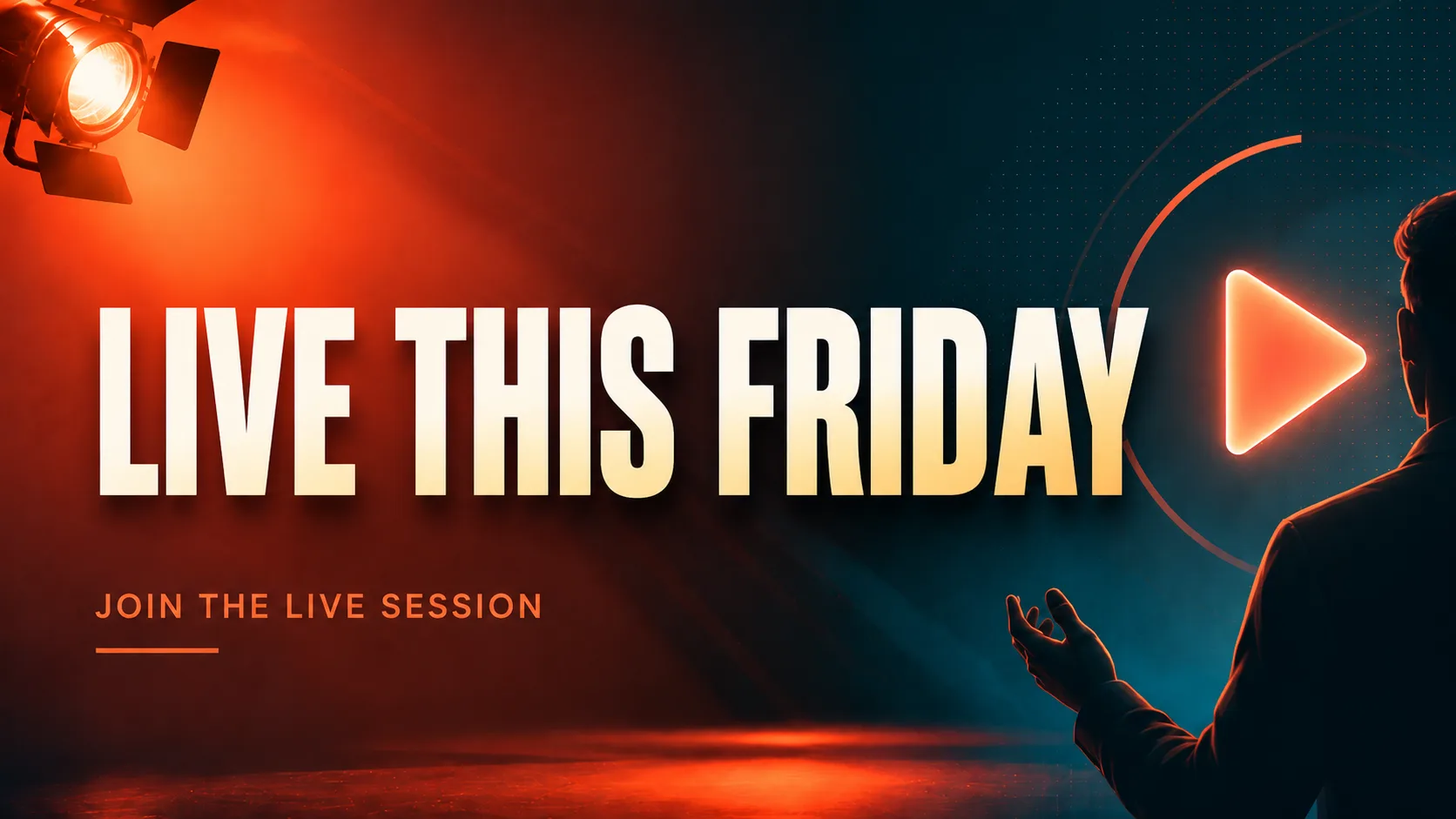
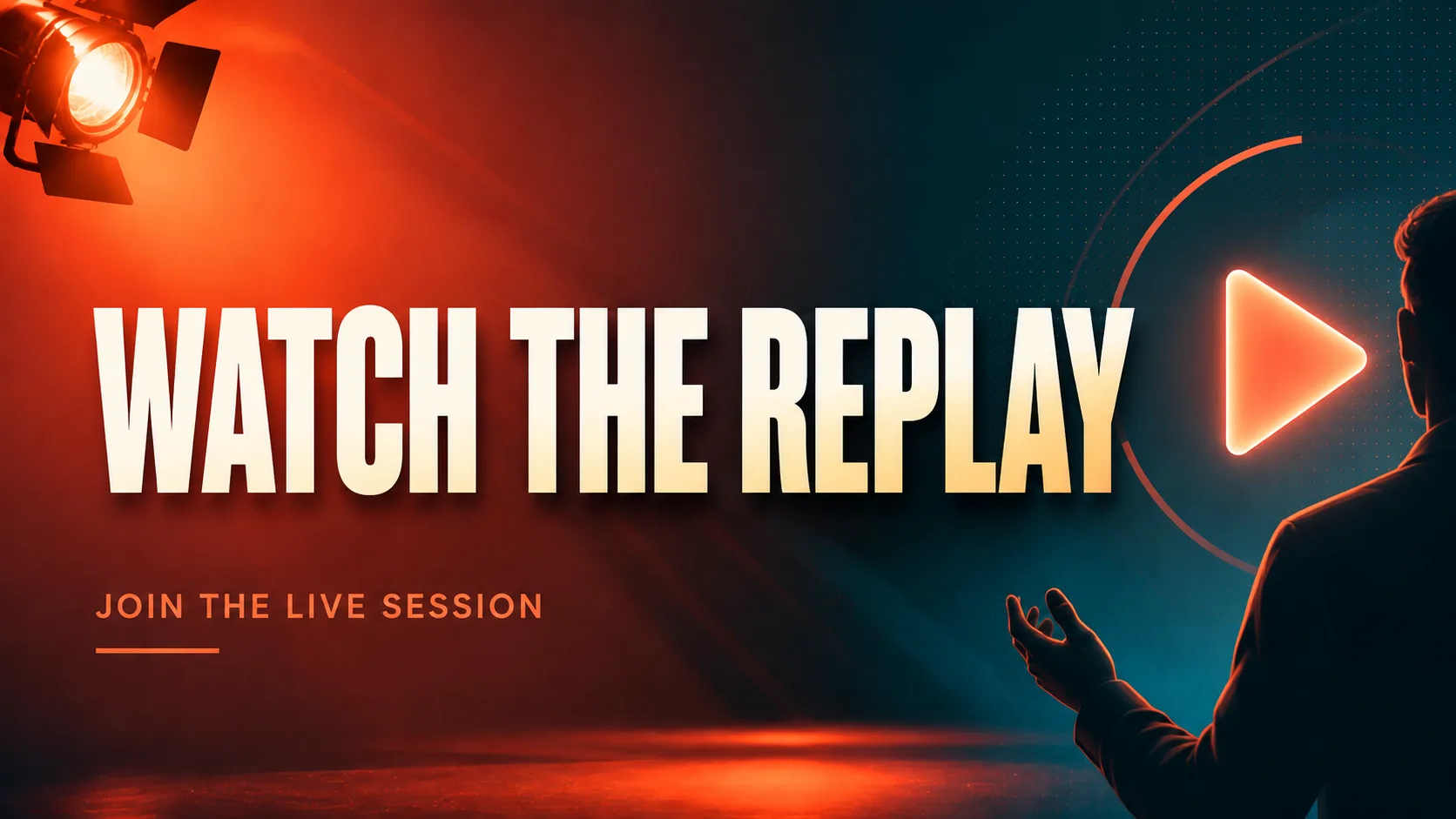
This example was generated with the current Image Text Editor workflow using the original uploaded social media graphic. One campaign headline was selected and replaced while the rest of the design remained the visual reference. The result is a flattened image, not an editable social media template or text layer. Results vary with image quality, text style, background complexity, and model output. Review every character and nearby design detail before publishing.
Focused campaign updates
Update a launch message, seasonal headline, campaign theme, webinar title, product announcement, or short promotional line.
Change an authorized event date, livestream time, registration deadline, launch date, or campaign period.
Replace a discount, limited-time offer, free-shipping message, bonus, bundle, or short sales promotion.
Update short action text such as Shop Now, Join Live, Watch Replay, Register Today, or Learn More.
Change wording embedded in a story graphic, reel cover, short-video cover, profile banner, or campaign header image.
Correct or refresh an announcement, availability notice, opening message, campaign status, or short informational line.
Know what the image editor changes
Wording embedded in an exported post graphic, story image, ad creative, cover, or banner. This is what the tool edits.
Text entered directly into the platform when publishing. Edit it through the social platform rather than inside the image.
A captured platform screen containing UI, account, or post elements. Use the screenshot text workflow for an authorized interface screenshot.
The tool cannot change a post that is already live on a social platform. It creates a new image file that you can review and upload through your normal publishing workflow.
Reuse approved visual direction
A social graphic may already have approved photography, illustration, colors, logo placement, and layout. When one short campaign message changes, updating that text can be faster than rebuilding the full creative. The current workflow creates one text replacement at a time. It does not batch-generate campaign versions or automatically run an A/B test.
The upload keeps its own dimensions
This page edits text inside the image you upload. It does not provide a separate social media resize, crop, safe-zone, or multi-platform export workflow. Start with a source image that already uses the intended composition and aspect ratio.
Four-step social graphic update
Upload the clearest JPG, PNG, or WebP version available. Use the exported graphic rather than a heavily compressed screenshot when possible.
Choose one full headline, date, offer, CTA, announcement, or short message. Include visible outlines and shadows when they are part of the text treatment.
Type exactly what should appear in the new image. Concise wording with similar capitalization and visual length is generally easier to fit into the existing design.
Generate the updated graphic, compare it with the original, check every character and nearby design element, then download the flattened PNG.
Design for quick scanning
Social media graphics are often viewed quickly and at a small size. A replacement that is much longer than the original can change line breaks, visual hierarchy, spacing, and readability.
Check the finished asset before upload
Confirm every word, date, time, price, discount, URL, and call to action.
Check that the new wording matches the campaign stage, offer period, event status, and approved message.
Review visible letter shape, weight, capitalization, color, outline, shadow, and spacing.
Inspect gradients, photography, illustrations, textures, and decorative shapes behind the changed text.
Check logos, product images, brand marks, icons, borders, and unrelated copy near the selected area.
Preview the image at a small mobile size and confirm that the replacement is still readable.
Check the finished graphic in the intended feed, story, cover, ad, or banner placement.
Compare the updated graphic with approved campaign copy before uploading it to any platform.
Flattened output
The generated result is saved as a new flattened image. The downloaded PNG does not contain an editable social media template, separate text layer, original font file, or controls for changing font, size, color, spacing, or position afterward.
Use the before-and-after comparison before downloading. Return to the original Canva, Figma, Photoshop, Illustrator, or other source file when the campaign requires exact typography, multiple layout changes, reusable layers, or a full set of platform dimensions.
Limits and authorization
Results are most consistent when the original wording is sharp, readable, and clearly separated from the background. Very small text, decorative scripts, curved lettering, heavy compression, transparent overlays, dense layouts, complex gradients, and long replacement copy can be less predictable.
The generated graphic may contain a spelling error, different letter width, altered spacing, traces of the original wording, an inconsistent background patch, or changes to nearby details. The current workflow focuses on one selected text block per generation.
Only upload and edit social media graphics you own or have permission to modify. Do not use the tool to fabricate endorsements, verification status, engagement metrics, platform notices, account ownership, direct messages, official statements, paid partnerships, news reports, or posts that falsely appear to come from another person, brand, or organization.
Social media image editing questions
Yes. Upload the finished social media graphic, select one detected text block, enter the replacement, and generate a new flattened result.
You can upload a finished JPG, PNG, or WebP graphic that you own or have permission to edit. The tool edits the uploaded image rather than connecting directly to a social platform.
No. The tool changes wording embedded inside an image file. Captions, comments, descriptions, and live post settings must be edited through the social platform.
A visible hashtag embedded in the image can be treated like another text block when it is clearly detected. This does not change hashtags entered in the platform caption.
Use the screenshot text editor when the uploaded image is a captured platform interface or post screenshot. Only edit screenshots you own or have permission to modify, and do not create deceptive platform records or fabricated posts.
No. This workflow edits text inside the uploaded image. It does not provide automatic social media resizing, cropping, safe-zone adjustment, or multi-platform exports.
The current workflow handles one selected text block per generation. Create and review separate campaign versions one at a time.
The editor uses the visible lettering and surrounding design as visual references, but the original font file is not available inside a finished image. An exact font match cannot be guaranteed.
No. The output is a flattened image rather than an editable text layer or social media template.
The editor accepts JPG, PNG, and WebP images up to 12 MB.
Eligible new accounts receive 1 free credit, available for one Standard 1K result, plus capacity for 3 image scans. Paid one-time credit packs start at $4.99 for 12 credits.
Original uploads are stored privately for up to 24 hours. Completed flattened results and related private diagnostics are kept for up to 7 days unless you delete them sooner. Your uploaded image and relevant text instructions are sent to the providers needed to perform the edit. Read the Privacy Policy.
Start with the finished campaign image
Upload a finished social media image, select one headline, date, offer, CTA, or short message, enter the replacement, and review the flattened result before downloading.
Upload a Social Media Image