Fonts for Every Mood
Choose from 10 fonts, from clean sans-serif and bold poster type to handwritten styles.
FREE BROWSER TOOL
Upload a photo, type your words and drag them into place. Choose a font, color, outline or shadow, then download the image as a PNG or JPG. It's free, there's no sign-up, and your photo never leaves your browser.
Choose the photo you want to write on.
Your photo is processed in your browser and is not uploaded.
REAL BEFORE AND AFTER
Each example below was made with this free tool: original photo on the left, finished image on the right.
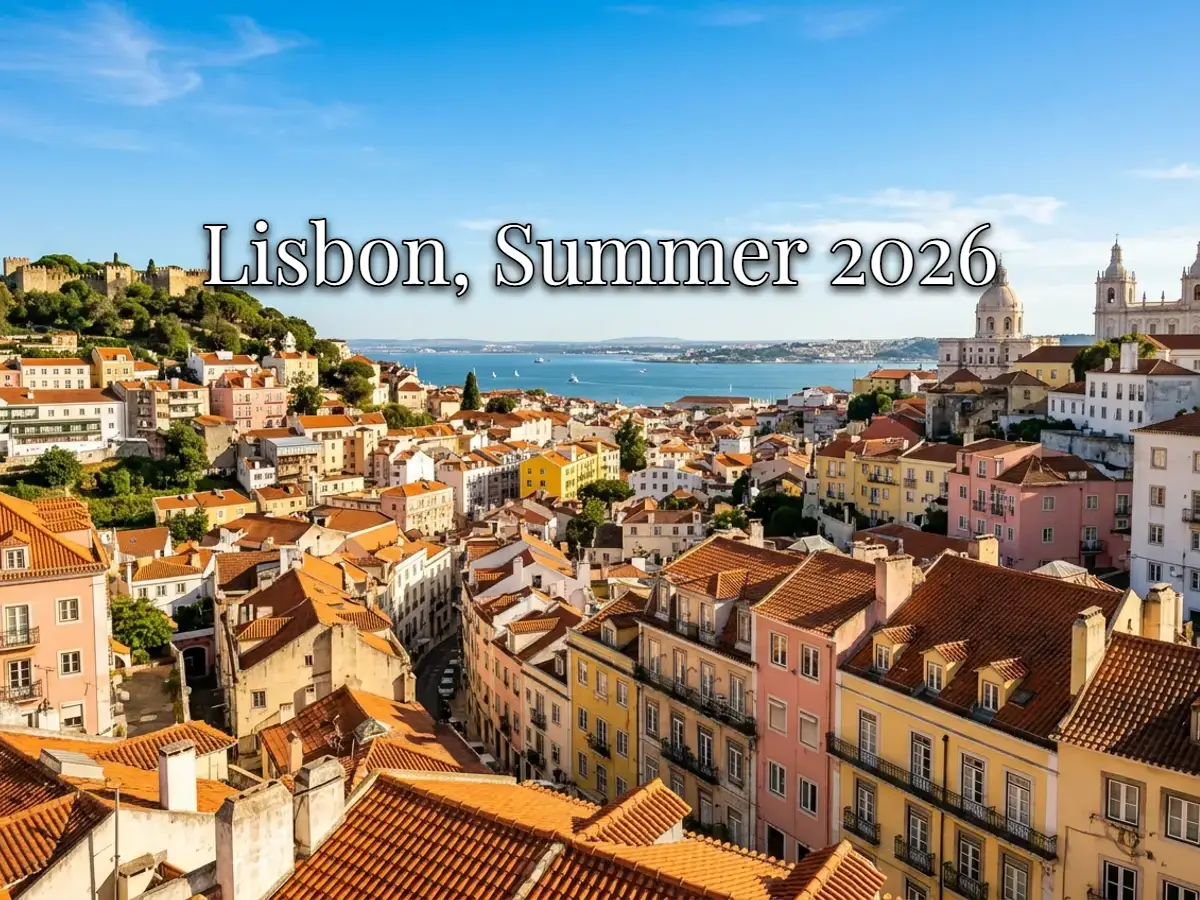
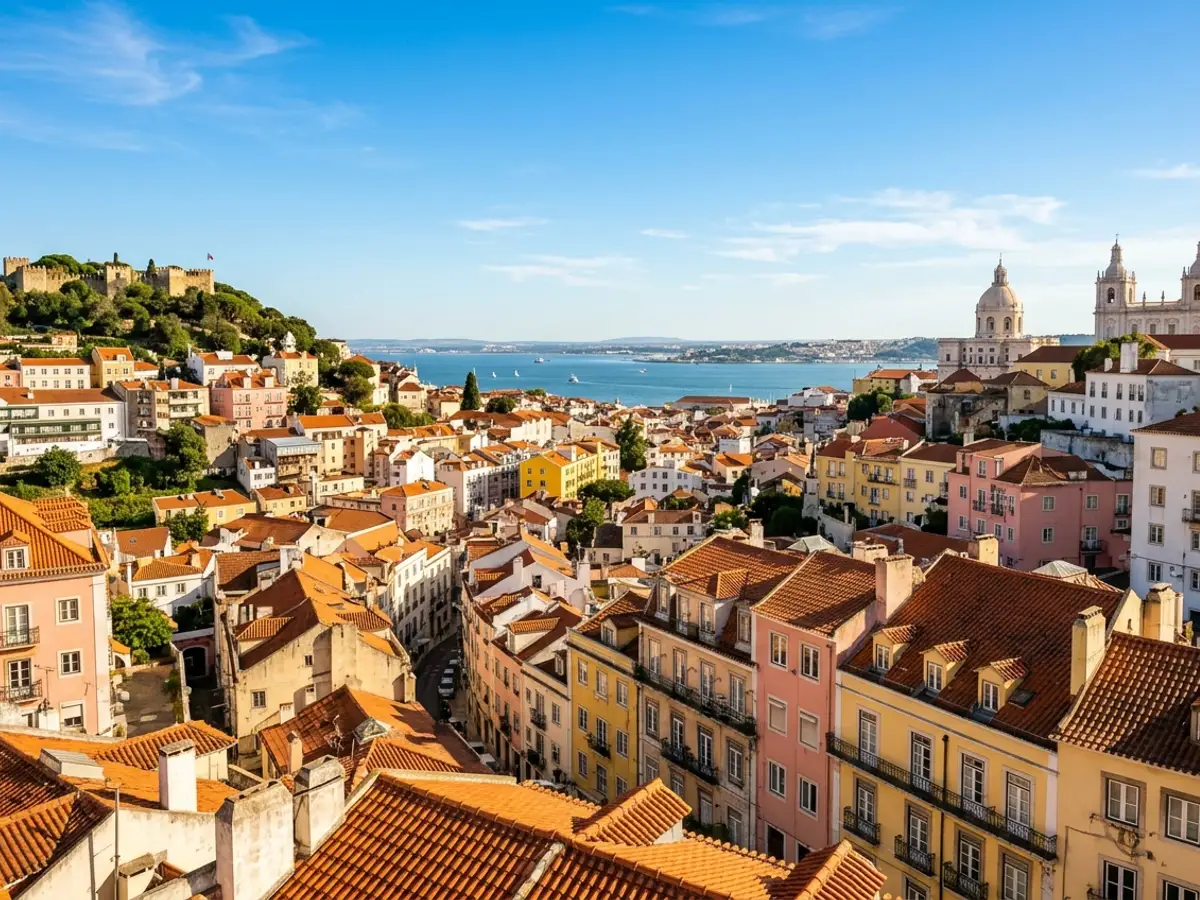
A place name and date in an elegant serif, with a soft shadow so it reads on a bright sky.
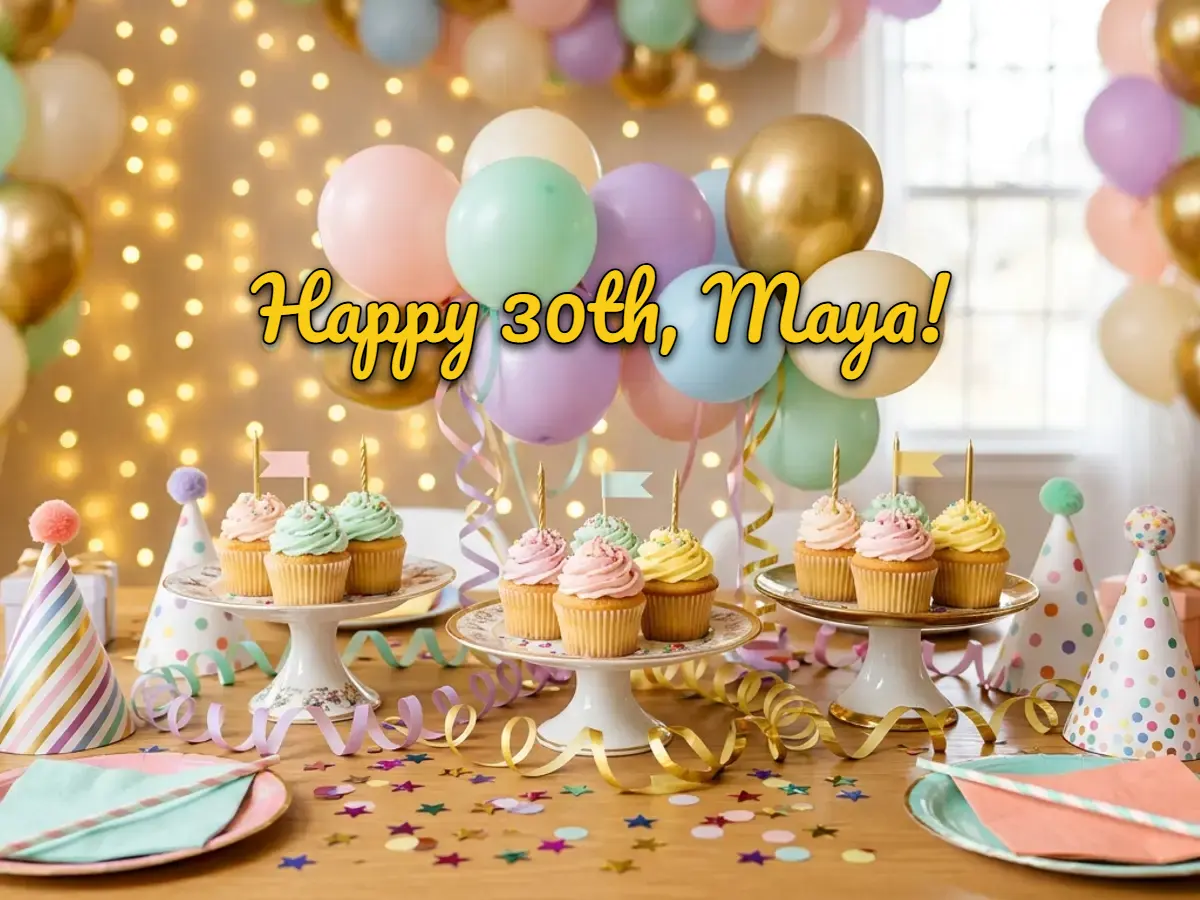

A playful script with a dark outline keeps the message clear over a busy party scene.
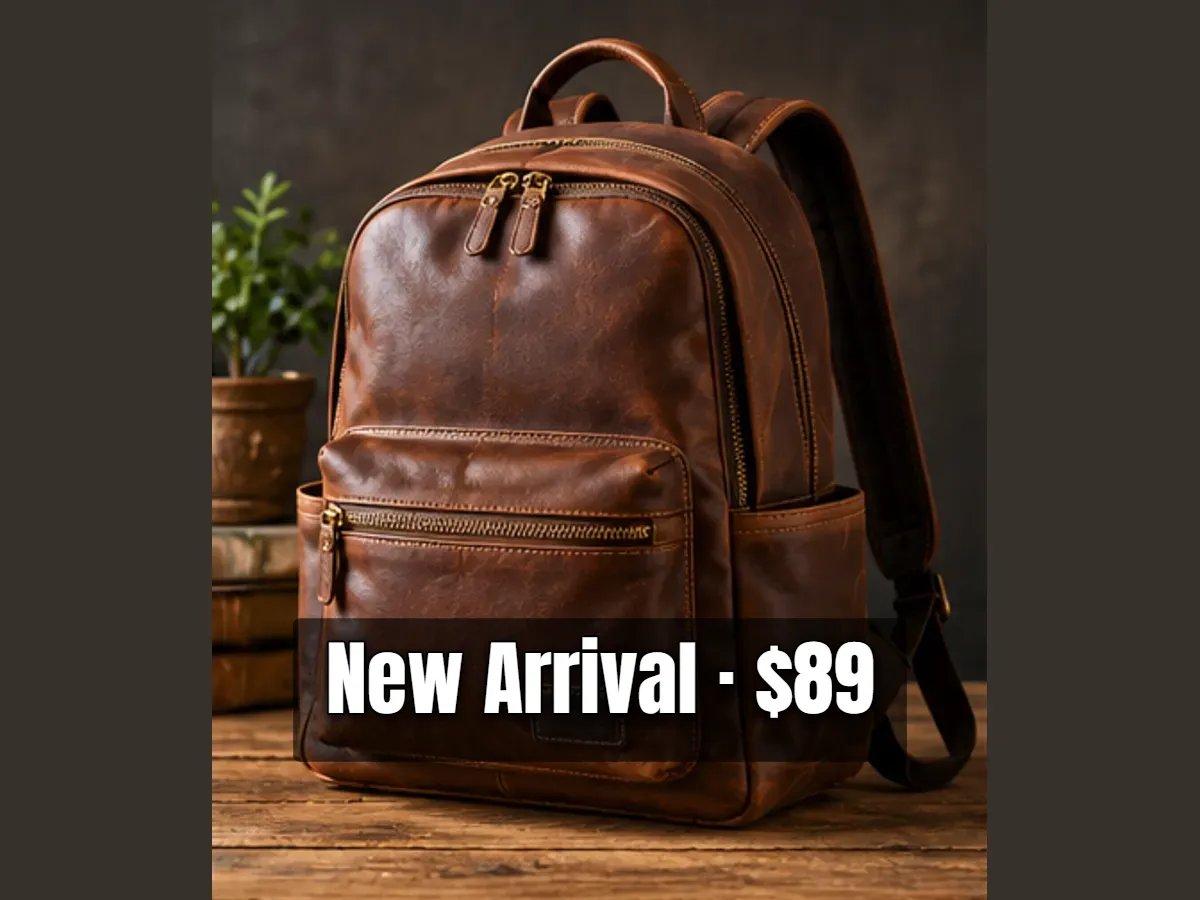
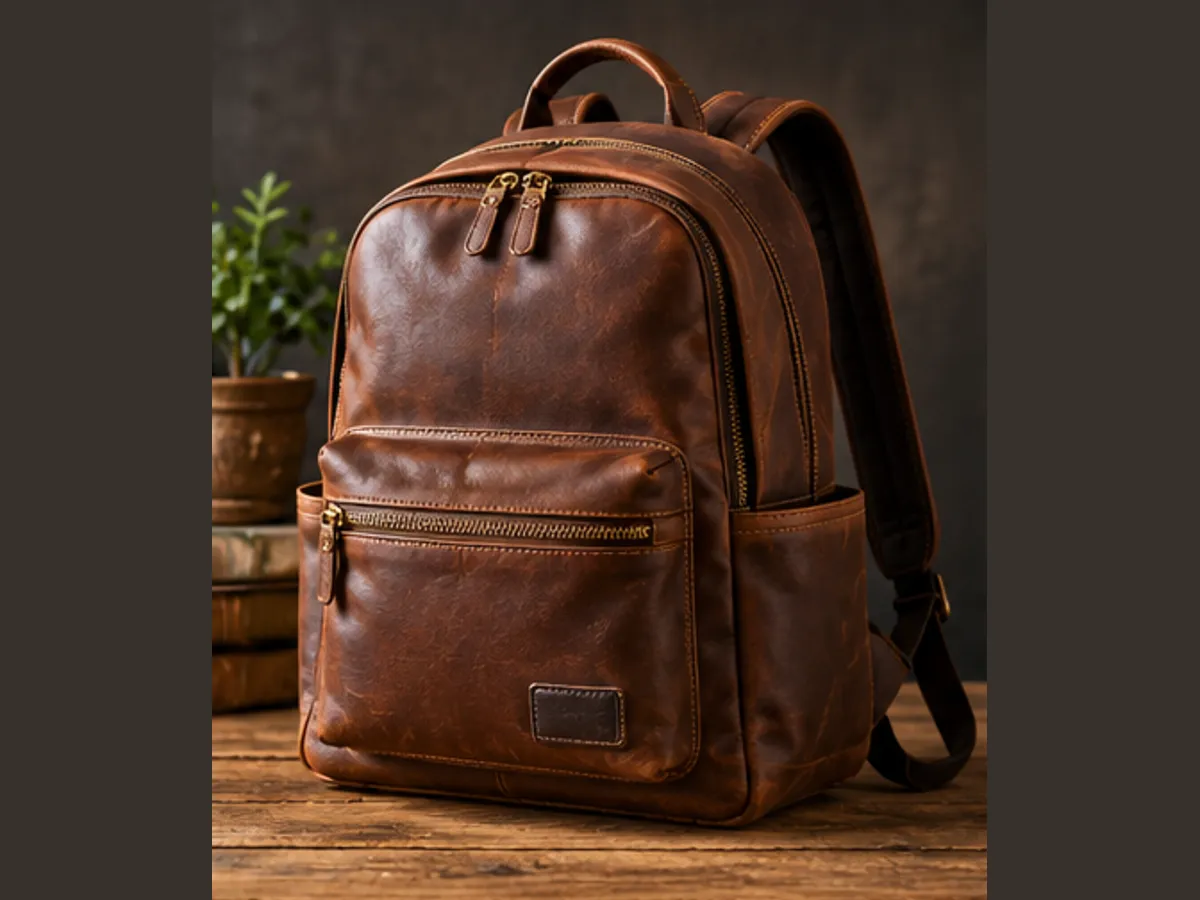
Bold poster type on a semi-transparent box makes a price stand out on a product photo.
SIMPLE STEPS
Drop a JPG, PNG or WebP into the box above, or tap to choose one from your phone.
Click "Add text" and type your words. Add as many text boxes as you need.
Drag the text where you want it, then pick a font, size, color and alignment.
Turn on an outline, a shadow or a background box if the photo is busy behind the words.
Save the finished image as a PNG or JPG at full resolution (up to 4096 pixels on the longest side), with no watermark.
CONTROLS THAT MATTER
The editor gives you the controls that matter most when you write text over a photo.
Choose from 10 fonts, from clean sans-serif and bold poster type to handwritten styles.
Pick from a quick palette or use the full color picker to match your photo.
Keep letters sharp and easy to read on bright or detailed backgrounds.
Place a colored box behind the text and adjust its opacity, so captions stay legible anywhere.
Angle a label to fit the scene or fade text into a subtle overlay.
Give a title, a date and a caption each their own font, size, color and position.
INSPIRATION
Put a place name, a date or a short quote on a travel photo.
Add a title and date to a party, wedding or event picture.
Write a short birthday or holiday message on a photo you want to share.
Label a screenshot or how-to image with short notes that point out what matters.
Add a price, a product name or an offer to a photo for a social post.
Sign photos you took yourself with your name or a simple watermark.
CHOOSE THE RIGHT TOOL
This tool adds new text on top of a photo. It does not change words that are already part of the image.
Place new words anywhere on a photo with this free tool. Nothing in the original image is changed.
Fix a typo on a poster or update an old price on a menu with the image text editor. It replaces words that are already part of the picture while keeping the original style.
Erase old words with remove text from image, then come back here to add new text in the same spot.
BEST PRACTICES
White text with a dark outline works on most photos.
A few large words read better than a long paragraph.
Social apps often crop the borders, so keep text away from them.
Pair a bold font for the title with a simple one for the details.
Zoom out to see how the image looks in a feed or on a phone.
Your privacy matters
Your photo is processed entirely in your browser. It is not uploaded to our servers, and nothing is stored after you close the page. That also makes the editor fast: there is no upload wait, even for large images.
Got questions?
Upload your photo above, click "Add text", type your words and drag them into place. Style the text with a font, color, outline or shadow, then download the image. There is no charge, no sign-up and no watermark.
Yes. The editor works in mobile browsers on iPhone and Android. Choose a photo from your gallery, add text, drag it with your finger and download the result. You don't need to install an app.
No. The downloaded image only contains your photo and the text you added.
No. Everything happens in your browser, and your photo never leaves your device.
Yes. Add as many text boxes as you like, and give each one its own font, size, color and position.
You can upload JPG, PNG or WebP images up to 12 MB, and download the result as a PNG or JPG.
Not with this tool, which adds new text on top. To change words that are already part of the image, use the image text editor.
Yes. The image is saved at its original size up to 4096 pixels on the longest side, so the text and photo stay sharp.
Need to Change the Words Already in Your Image?
Adding text is free. When you need to fix a typo, update a date or replace a price that's part of the picture, the image text editor can change it for you.
Try the Image Text Editor