Menu Prices
Update an authorized dish, drink, add-on, size, bundle, or set-menu price after verifying the currency and decimal placement.
Restaurant menu text editing
Update text already embedded in a finished restaurant menu image without rebuilding the complete design. Upload a JPG, PNG, or WebP menu, select one price, dish name, daily special, short description, or label, enter the replacement, compare the generated result, and download a flattened PNG.
This tool edits wording inside an uploaded menu image. It does not edit a live QR menu, restaurant POS system, website navigation, multi-page PDF, or editable Canva, Photoshop, or Illustrator template.
Choose a clear menu image containing the complete price, dish name, special, description, or label you want to update.
Real before and after
Compare the original uploaded restaurant menu with the flattened result produced by the current Image Text Editor workflow.
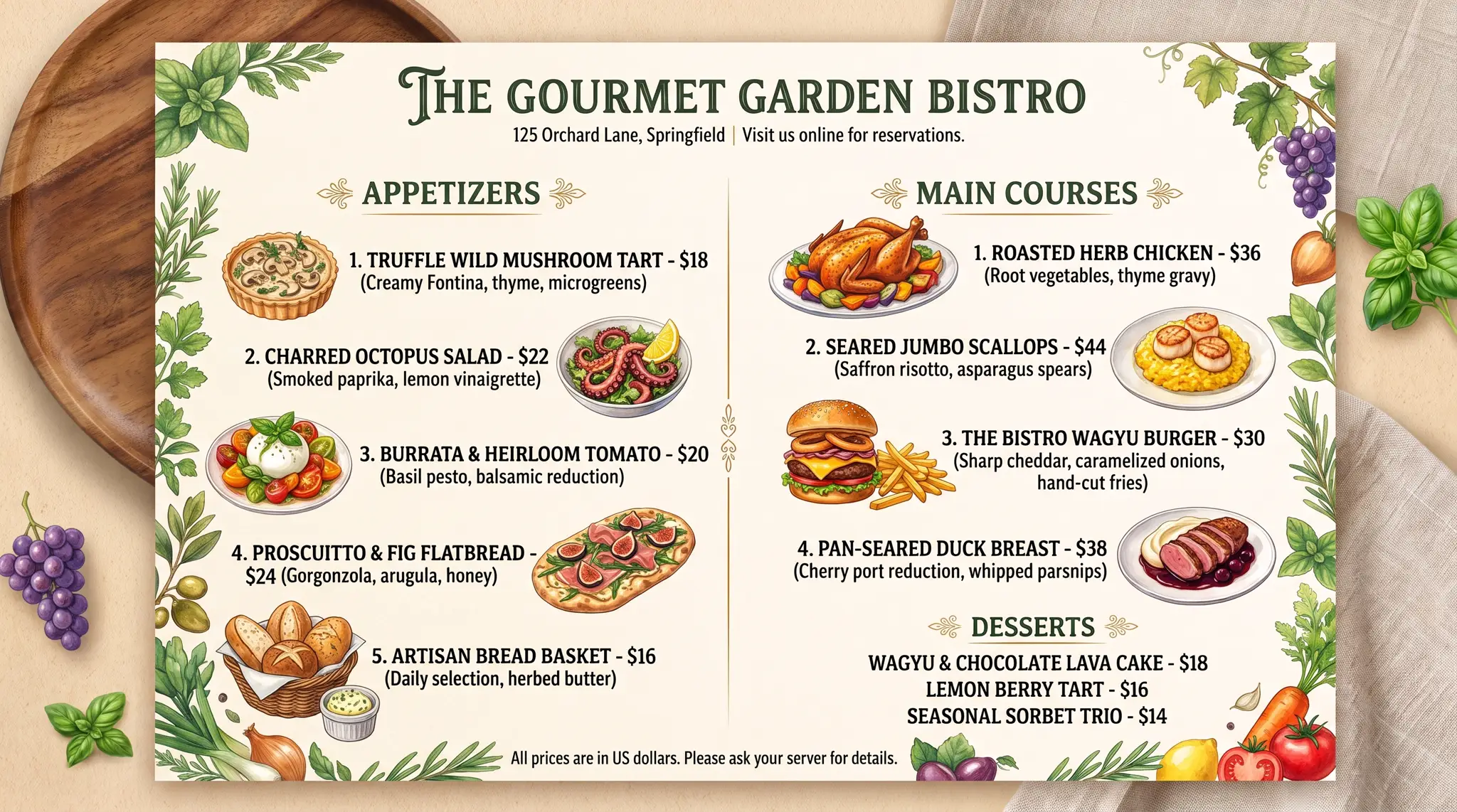
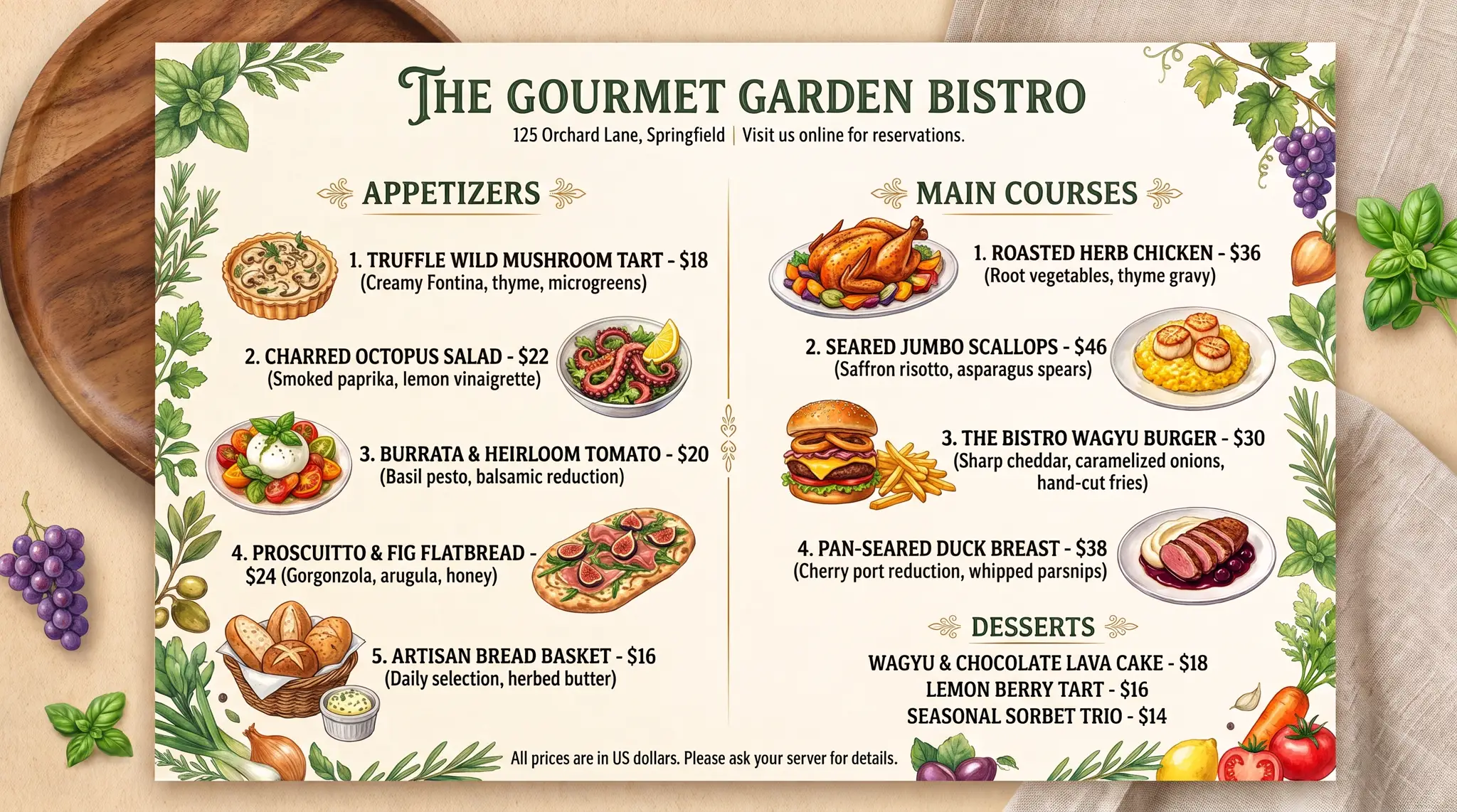
This example was generated with the current Image Text Editor workflow using the original uploaded restaurant menu. One existing scallops price was selected and replaced while the surrounding dish names, prices, dividers, illustrations, and background remained the visual reference. The result is a flattened image, not an editable menu template or restaurant management file. Results vary with image quality, text style, background complexity, and model output.
Focused restaurant menu updates
Update an authorized dish, drink, add-on, size, bundle, or set-menu price after verifying the currency and decimal placement.
Replace a clear item name, flavor, size label, variation, or short menu title.
Update one soup, cocktail, dessert, chef special, seasonal item, or limited menu message.
Correct or replace one concise ingredient, preparation, flavor, or serving description when it fits inside the existing visual area.
Change a section title such as Coffee, Breakfast, Desserts, Cocktails, or Seasonal Specials.
Correct an approved dietary label or short customer notice only after confirming that the updated information is accurate.
Use the right source
A JPG, PNG, or WebP where item names, prices, descriptions, and design elements are rendered into one image. This is what the tool edits.
A Canva, Photoshop, Illustrator, Figma, or other source file containing live text layers and full layout controls.
Menu content stored in a restaurant platform, ordering system, website, or database. Update it through that system.
Use this workflow when the finished menu image is the only practical source and one contained text change is needed. Return to the source design or menu system when many items, sections, ordering data, or pricing rules need to change.
One contained menu change
Customer-facing accuracy
Source quality matters
A clear export from the source design usually provides the sharpest text and most predictable detection.
A high-resolution still can work well when wording is large and front-facing.
A well-lit, front-facing photo may work, but glare, shadows, perspective, and paper texture can reduce consistency.
Handwritten and chalk-style wording can be harder to detect and reproduce.
Very small text, narrow columns, aligned prices, and long descriptions require closer review.
If a QR code is near the selected text, scan it again after generation and confirm the destination.
Four-step menu update
Upload the clearest JPG, PNG, or WebP version available. Use the original exported menu image rather than a compressed screenshot when possible.
Choose one full price, dish name, special, description, or category heading. Include the complete currency symbol, decimal point, punctuation, and visible text effects.
Type exactly what should appear in the final menu. Keep the replacement concise and reasonably close to the original visual length when possible.
Generate the updated menu image, compare it with the original, verify every character and customer-facing detail, then download the flattened PNG.
Keep the row readable
Review before publishing
Confirm the currency symbol, decimal point, trailing zero, and final amount.
Verify spelling, capitalization, sizes, flavors, and variants.
Check ingredients, preparation wording, quantities, and customer-facing claims.
Confirm dietary, allergen, ingredient, and availability statements through an approved source.
Check that updated text remains aligned with nearby names, descriptions, and prices.
Review letter shape, weight, capitalization, color, outline, shadow, and spacing.
Confirm that surrounding dishes, prices, labels, and headings were not changed.
Rescan QR codes and verify URLs, phone numbers, addresses, and ordering details.
Preview at the actual board, tablet, web, table-card, takeout, or print size.
Output boundaries
The generated result is a flattened PNG. It does not create a multi-page PDF, CMYK file, bleed, crop marks, editable print layout, or live digital-menu project.
The tool does not publish directly to a digital menu board, ordering platform, QR menu, or restaurant website. Download the result and update those systems through their normal workflow.
Flattened output
The downloaded PNG does not contain an editable menu template, separate text layer, original font file, restaurant database, or controls for changing font, size, color, spacing, or position afterward.
Keep the original menu image and use the before-and-after comparison to review the updated result.
Limits and authorization
Very small prices, dense columns, long descriptions, handwritten chalk text, reflective boards, food photography behind text, strong perspective, and compressed images can be less predictable. The current workflow handles one selected text block per generation.
Only upload and edit menu images you own or have permission to modify. Keep dish names, prices, portions, ingredients, dietary labels, allergen information, taxes, service charges, availability, contact details, and ordering conditions accurate and authorized.
Do not use the tool to impersonate another restaurant, fabricate official pricing, create deceptive delivery listings, or alter menus used as evidence in disputes or transactions.
Restaurant menu editing questions
Yes. Upload the finished menu image, select one detected text block, enter the replacement, and generate a new flattened result.
Yes. Select the complete price block and enter the updated amount. Carefully verify the currency symbol, decimal point, trailing zero, and nearby item alignment before publishing.
A clear dish name, drink name, size, flavor, category title, or short special can be replaced when it is detected as one text block.
No. The workflow changes one existing text block inside a finished menu image. It does not create a complete menu design from scratch or provide menu templates.
No. The current upload workflow accepts JPG, PNG, and WebP images rather than multi-page PDF files.
No. Live menu content stored in a QR menu platform, POS system, ordering service, or restaurant website must be updated through that system. This tool only edits an uploaded image.
The current workflow handles one selected text block per generation. Complete and review separate prices or menu items one at a time.
A clear, front-facing chalkboard photo may work, but handwritten lettering, faint chalk, glare, shadows, texture, and perspective can make detection and generation less predictable.
The editor uses the visible lettering and surrounding design as visual references, but a finished menu image does not contain the original font file. An exact font match cannot be guaranteed.
No. The generated result is a flattened image rather than an editable menu template or text layer.
The result is a flattened PNG. Verify its pixel dimensions against the intended print size, and use the original design file when professional print settings, bleed, crop marks, CMYK output, or multi-page layouts are required.
The editor accepts JPG, PNG, and WebP images up to 12 MB. The generated result is downloaded as a flattened PNG.
Eligible new accounts receive 1 free credit, available for one Standard 1K result, plus capacity for 3 image scans. Paid one-time credit packs start at $4.99 for 12 credits.
Original uploads are stored privately for up to 24 hours. Completed flattened results and related private diagnostics are kept for up to 7 days unless you delete them sooner. Your uploaded image and relevant text instructions are sent to the providers needed to perform the edit. Read the Privacy Policy.
Start with the finished menu image
Upload a finished menu image, select one price, dish name, daily special, description, or label, enter the replacement, and review the flattened result before downloading.
Upload a Menu Image