NEON SIGN · REAL RESULT
Change glowing sign text
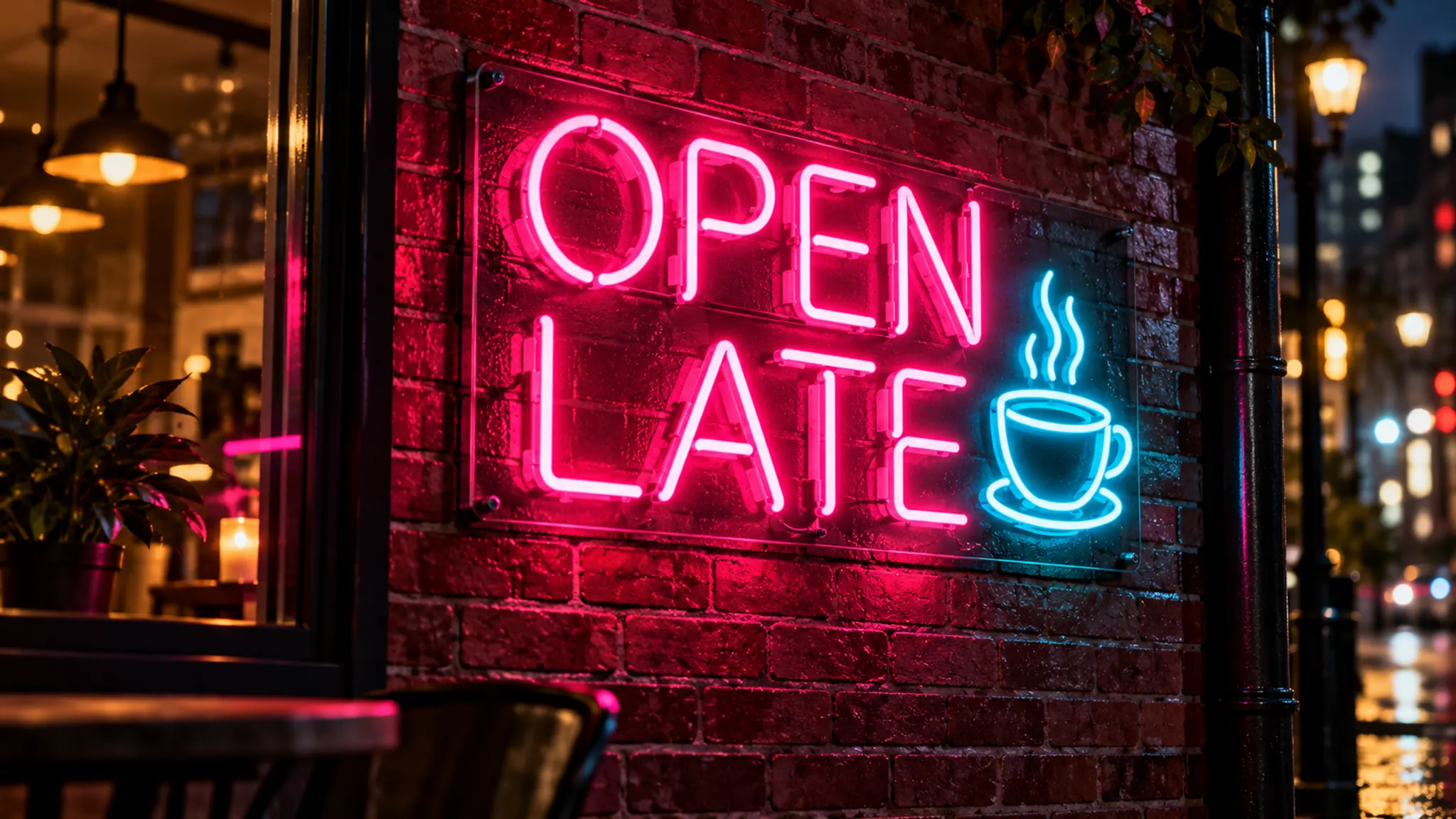
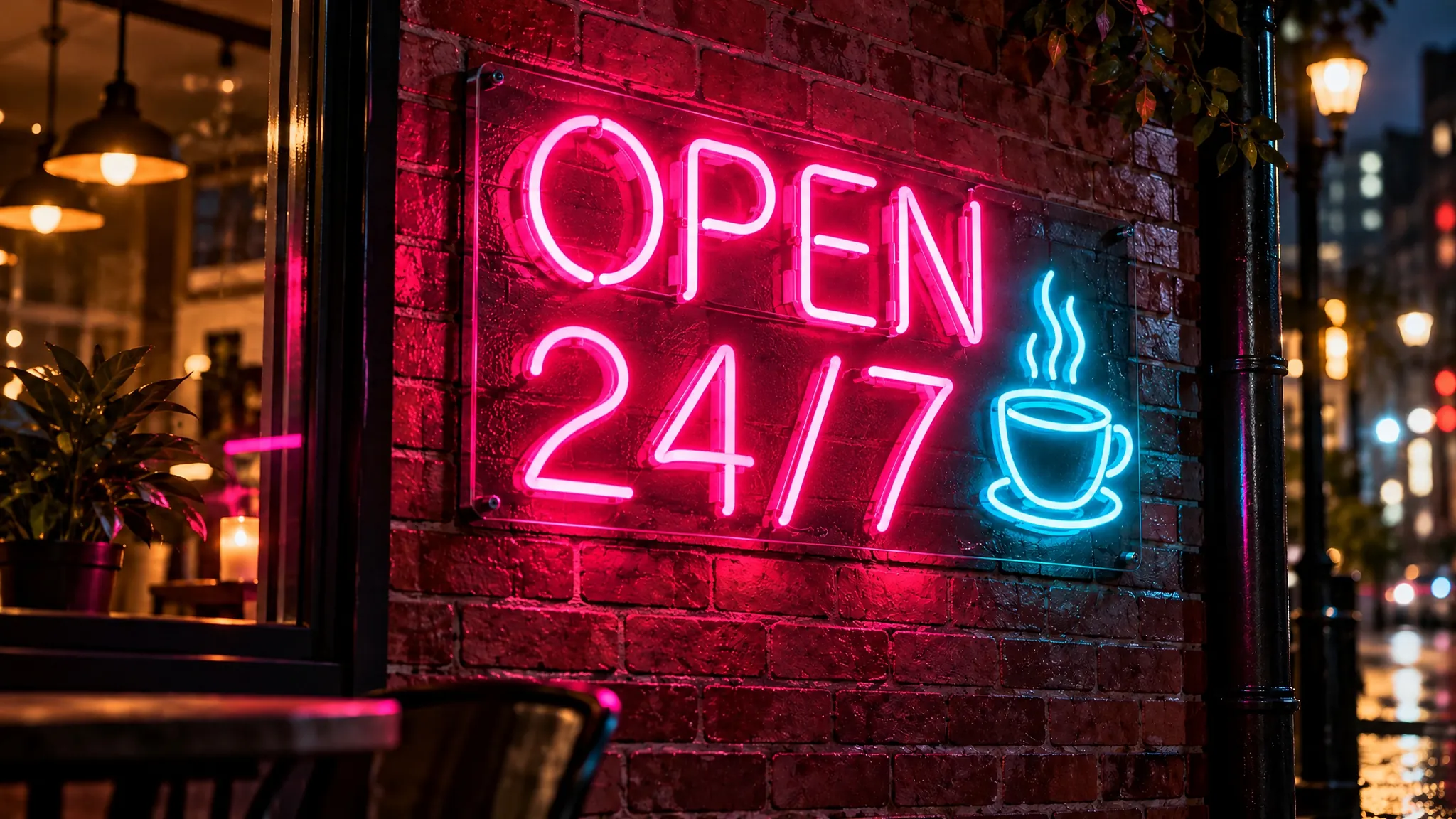
Drag to compare. Use arrow keys when focused.
Keep the image. Change the words.
Image Text Editor is an online AI tool for changing words that are already part of a picture. Upload a JPG, PNG or WebP, select the text you want to change, type the new wording, then compare the result with the original and download the edited image. Eligible new accounts get one free credit after Google sign-in.
The editor uses the original lettering and surrounding design as a visual reference. Always review spelling and nearby details before publishing.
We’ll detect the visible text so you can choose exactly what to replace.
See the result before you upload
Real results from Image Text Editor, not retouched.
NEON SIGN · REAL RESULT
Change glowing sign text
Drag to compare. Use arrow keys when focused.
More real results
A quick definition
An image text editor is an online tool for changing words already embedded in a JPG, PNG, or WebP image without the original design file. Select the text you want to replace, enter the new wording, then review and download the edited image.
Ready to make a focused change? Start to edit text in your image.
Who it is for
Useful when one text line needs to change
Posters and flyers · Social graphics · Screenshots and UI mockups · Banner ads · Product photos
A shorter path from old copy to new
Upload a JPG, PNG, or WebP and change the text online, even without the original design file.
Choose a clear JPG, PNG, or WebP.
Let the editor detect visible wording, then choose the exact text block to change.
Enter the replacement wording and generate an edited version.
Compare both versions, review the full image, and download the flattened PNG.
Need step-by-step instructions? Read the complete picture text editing guide or compare JPG, PNG, and WebP before starting.
To edit text in a JPG or JPEG image, use the JPG text editor. For PNG files, edit text in a PNG.
Use cases
When the source file is missing, a small copy change can become a redesign. Use the same focused workflow for posters, social graphics, screenshots, banners, product images, and labels. Need the words gone instead of rewritten? Use the image text remover to remove text from an image and rebuild the background behind it.
Update prices, dates or headlines on finished display ads and web banners.
Edit text in a banner adSwap captions, promo codes, or headlines in finished graphics without reopening the source design in Canva or Photoshop.
Edit text in social media imagesReplace outdated dashboard labels or mockup text, then review the font style and nearby UI details.
Edit text in screenshotsUpdate product feature callouts and spec labels for catalog or ecommerce graphics.
Edit text in a product photoVersatile text updates
Update finished photos, posters, and graphics without starting from scratch.
When you need to fix a typo or update details on an exported picture, an image and text editor saves you from rebuilding the whole graphic. Simply upload your image, select the words you want to change, and let the tool blend your new wording into the surrounding photo editing text area.
Whether you are working with casual snapshots, marketing visuals, or product shots, our photo letter editor makes it easy to replace individual characters or complete phrases. The editor clears the old letters and repairs the background texture in one step, making it a practical text editor photo workflow for everyday corrections.
For specific creative projects, you can use our poster text editor to update event details, create click-worthy video covers with our thumbnail text editor, or edit text in image with same font when visual consistency matters most.
Focused review after replacement
You can detect embedded wording, replace one selected block, and compare the edited image with the original before download.
Need a direct old-to-new workflow? Try to replace text in an image directly. If you want to keep the surrounding layout intact, read our guide on replacing text without changing the background.
Select from the text found in the image instead of rebuilding every design element. You know which block will change before generation begins.
The downloaded PNG combines the repaired background and replacement text into one finished image, so there are no layers to manage before publishing. Saved results can be viewed and downloaded from your account for 7 days.
The editor uses the existing lettering and surrounding design as a reference, helping the new text feel consistent with the image you already approved.
Compare the original and edited versions before downloading. Check wording, placement, surrounding details, and visual consistency at a glance.
The workflow targets the selected text area to reduce unnecessary changes. Review nearby logos, objects, and small details before publishing.
If typography is the main risk, edit text with the same font style to preserve the design. You can also read how visual font matching works before downloading your image.
A practical image text editing guide
Results are strongest when the lettering is clearly separated from the surface behind it. A sharp source image, accurate selection, and replacement of a similar length give the editor a clearer reference.
A layered source file is not required, but the upload should clearly show letter edges, shadows, texture, and nearby background details.
Use the highest-resolution version available rather than a compressed thumbnail. Clear boundaries help separate letters from gradients, product surfaces, decorative shapes, and nearby copy. Keep enough surrounding background to show how the text belongs in the composition.
Choose the full headline, label, or sentence you intend to replace. For unrelated text blocks, work on one at a time to keep each edit focused, then review nearby wording for unintended changes.
A shorter or similarly sized phrase is easier to fit into the original space. Longer copy may produce different line breaks, scale, or spacing.
Zoom in and check every character. Confirm the old text is removed, then inspect color, lighting, perspective, alignment, and nearby graphics before publishing.
Publishing references
Use authorized images, add accessible context, and review key limits.
Designed to stay approachable
This online tool focuses on replacing existing words in finished images when the editable design file is unavailable. It works with JPG, PNG, and WebP uploads.
Pricing summary
The sample demo is free without sign-in. Eligible new accounts receive 1 free credit after sign-in, available for one Standard 1K result; abuse safeguards apply. Standard 1K uses 1 credit and HD 2K uses 2 credits per saved result. One-time credit packs do not expire while your account remains available; subscription credits refresh monthly and do not roll over.
1 free credit
One Standard 1K result for eligible new accounts
12 credits
$0.42 per credit - up to 12 Standard 1K or 6 HD 2K results
30 credits
$0.33 per credit - up to 30 Standard 1K or 15 HD 2K results
One-time credit packs do not renew automatically. Subscriptions are also available and renew automatically until canceled.
Frequently asked questions
Use images you own or have permission to edit. The service is designed for finished images such as banners, screenshots, product photos, posters, labels, and marketing assets.
It changes words already embedded in an image. Upload the image, select detected wording, enter the replacement, and an AI model generates a new version that uses the surrounding visual style as reference. The result is a flattened image, not an editable text layer.
Yes. Upload a JPG, PNG, or WebP, choose one detected text block, and enter the replacement. The result aims to match the original lettering and surrounding design.
Upload a JPG, PNG, or WebP, wait for the visible text to be detected, select the text block you want to change, and enter the new wording. Generate the edited version, compare it with the original, and download the flattened PNG. Uploading your own image requires Google sign-in; the sample demo does not.
You do not need the original PSD, Canva, or Figma file. Upload the finished JPG, PNG, or WebP and replace one detected text block at a time. Because the output is a flattened image, use the original design file instead when you need exact fonts, reusable text layers, or broad layout changes.
You can replace the visible text in an image: the editor detects text blocks, you choose one, and it generates a new image with your wording. It does not export an editable text layer or a text file. Always review spelling and nearby details before publishing.
It is free to try, not unlimited. The sample demo does not require sign-up, and eligible new accounts receive 1 free credit after Google sign-in, available for one Standard 1K result; abuse safeguards apply. After that, you can buy a one-time credit pack or choose a monthly or yearly Basic, Pro, or Studio subscription.
The editor uses the original lettering as visual guidance. It aims to preserve the same font style, color, and placement. Results are strongest when the original text is sharp and readable.
Compare the before and after images at full size. Check spelling one character at a time, confirm that nearby details remain clean, and review typography, color, spacing, and line breaks.
The upload flow supports JPG, PNG, and WebP images. For the clearest result, upload the largest practical version available and avoid heavily compressed files where letter edges have become blocky or blurred.
Language and layout quality depends on how clearly the source text can be detected and how accurately the image model renders the requested replacement. Curved, reflective, very small, or dense text can be less consistent, so verify every character before publishing.
The sample demo works without sign-in. To upload your own image and use account features, sign in with Google. Eligible new accounts receive 1 free credit, available for one Standard 1K result; abuse safeguards apply. Sign-in also keeps your private generation history available.
It depends on how you buy them. One-time credit packs do not expire while the service and your account remain available, and they are not charged again automatically. Monthly credits from a Basic, Pro, or Studio subscription refresh every month, do not roll over, and expire at the end of that cycle. Subscriptions renew automatically until canceled.
Compare the before and after image before publishing. AI can misspell text, leave traces of old lettering, or change nearby details.
Original uploads are temporarily stored for up to 24 hours and are not kept as a permanent upload library. Completed edited results are saved privately in your account history for up to 7 days after each save, unless you delete them earlier or request account-data deletion.
Yes. Product photos, listing graphics, campaign banners, and marketplace images are supported when you own the image or have permission to edit it. For that vertical workflow, use the dedicated product photo guide.
Yes. Choose the detected text block containing the word or letter you want to correct, then enter the corrected wording for the complete block. The edit targets that selection rather than every word in the image, but AI may still change nearby details. Review all text and the surrounding area before downloading.
No. It is a focused tool for replacing existing text and downloading a reviewed image result. A full design application is better when you need to rebuild layouts, manage reusable design objects, or make broad image changes.
No. The editor replaces text in place rather than moving it. If you want text somewhere else, remove the original words with the text remover, then use our free add text to photo tool to place new text exactly where you want it.
Your next update can start here
Upload the image, select the words, compare the result, and download the reviewed image.
Free demo available. Eligible new accounts receive 1 free credit for one Standard 1K result after sign-in; abuse safeguards apply.